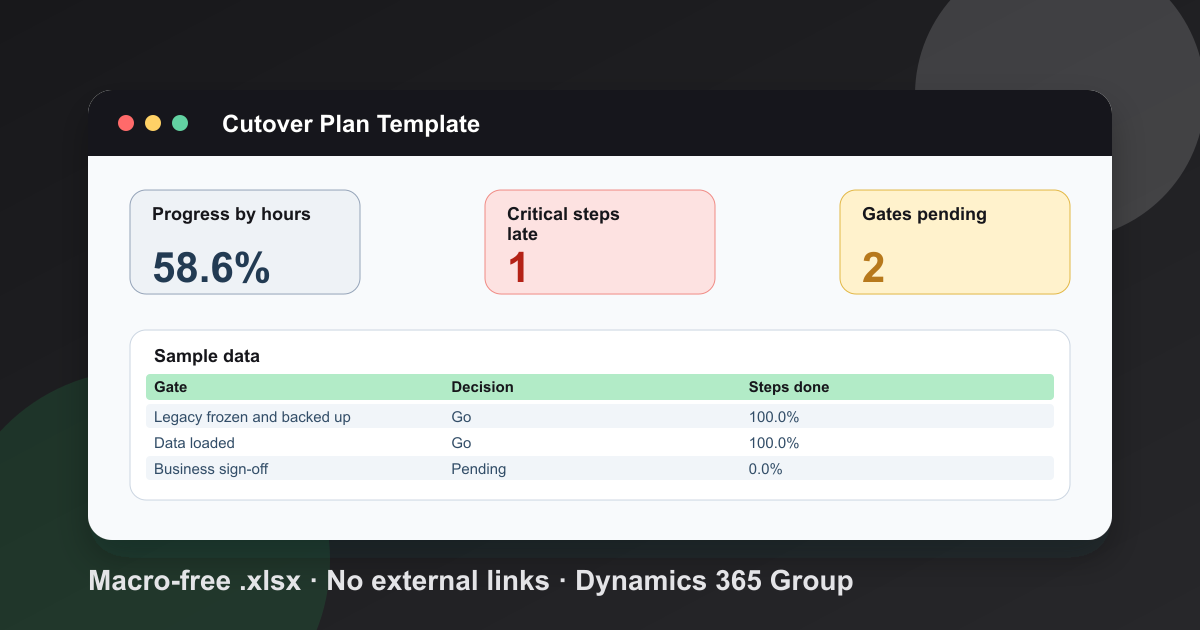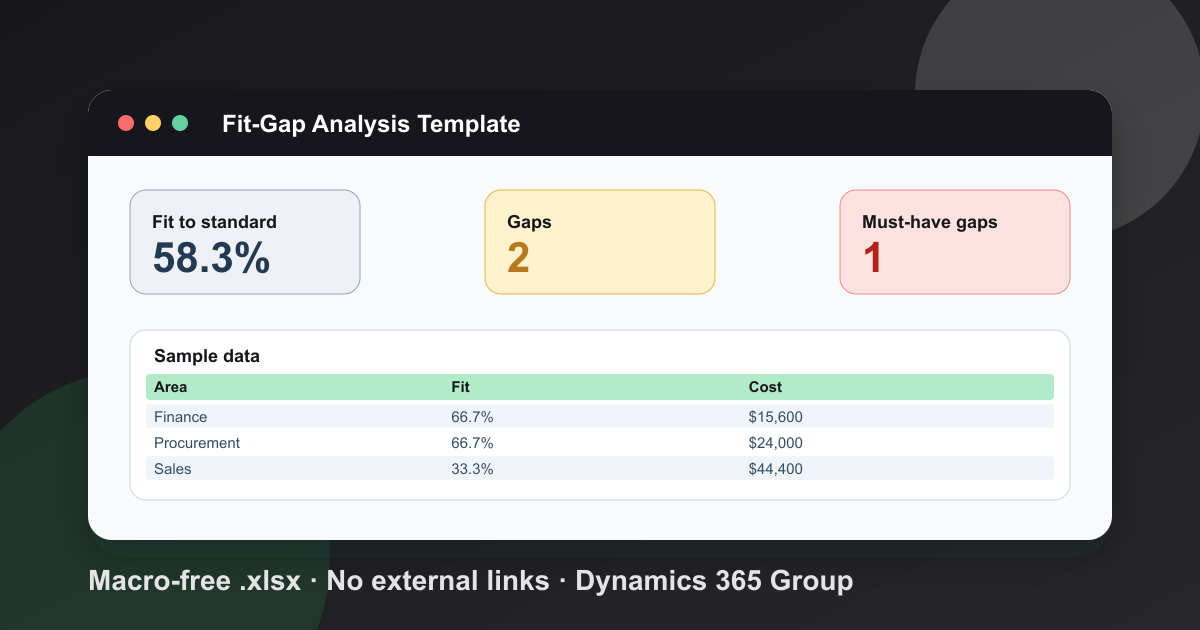
TL;DR
- This free workbook scores each requirement as Standard, Configure, Extend or Gap against Dynamics 365.
- It rolls fit to standard, effort and cost up by process area, and counts must-have gaps for the steering group.
Most fit-gap work ends up in a long list that nobody can total. My fit-gap analysis template is a working workbook. You score each requirement once, and it rolls the answers up by process area.
Download the fit-gap analysis template. It is a plain .xlsx with no macros and no sign-up. Every sample requirement describes a fictional project, so nothing in the file is a Dynamics 365 capability matrix.
Video walkthrough
This short captioned walkthrough moves through the three working sheets in order. It starts with one must-have requirement scored as a gap, then shows the rollup by process area, and ends with the numbers a steering group reads first. Watch it before you open the file if you want the shape quickly.
Who this template is for
I wrote this for project leads and partners who run fit workshops on a Dynamics 365 project and need more than meeting notes. It suits a customer lead who wants one shared list, or a partner who has to defend an estimate. It helps most after the requirements are written down and before any build is approved.
Microsoft’s guidance is clear on the order. It says to start fit-to-standard analysis for every project, then use fit-gap analysis to decide how to fill what is left. Good input matters too, so read Microsoft’s guide on defining requirements first. It lists disposition (fit or gap), priority and effort among the fields worth tracking for each requirement, and the Requirements sheet follows that shape.
If you are still choosing a product, my Business Central vs Finance and Operations comparison comes first. If you need help running the workshops, our services page explains how we work with project teams. This template can also feed the fit-gap workshops line in my ERP implementation project plan template.
What is in the workbook
There are five sheets in a fixed order, and each one does a single job. Instructions covers setup and limits. Lists explains the four fit categories and the three priorities. Requirements holds one row per item. Summary rolls those rows up by process area. Dashboard holds the day rate and the headline numbers that this page quotes.
- Instructions covers setup and the import route.
- Lists defines each fit category and priority.
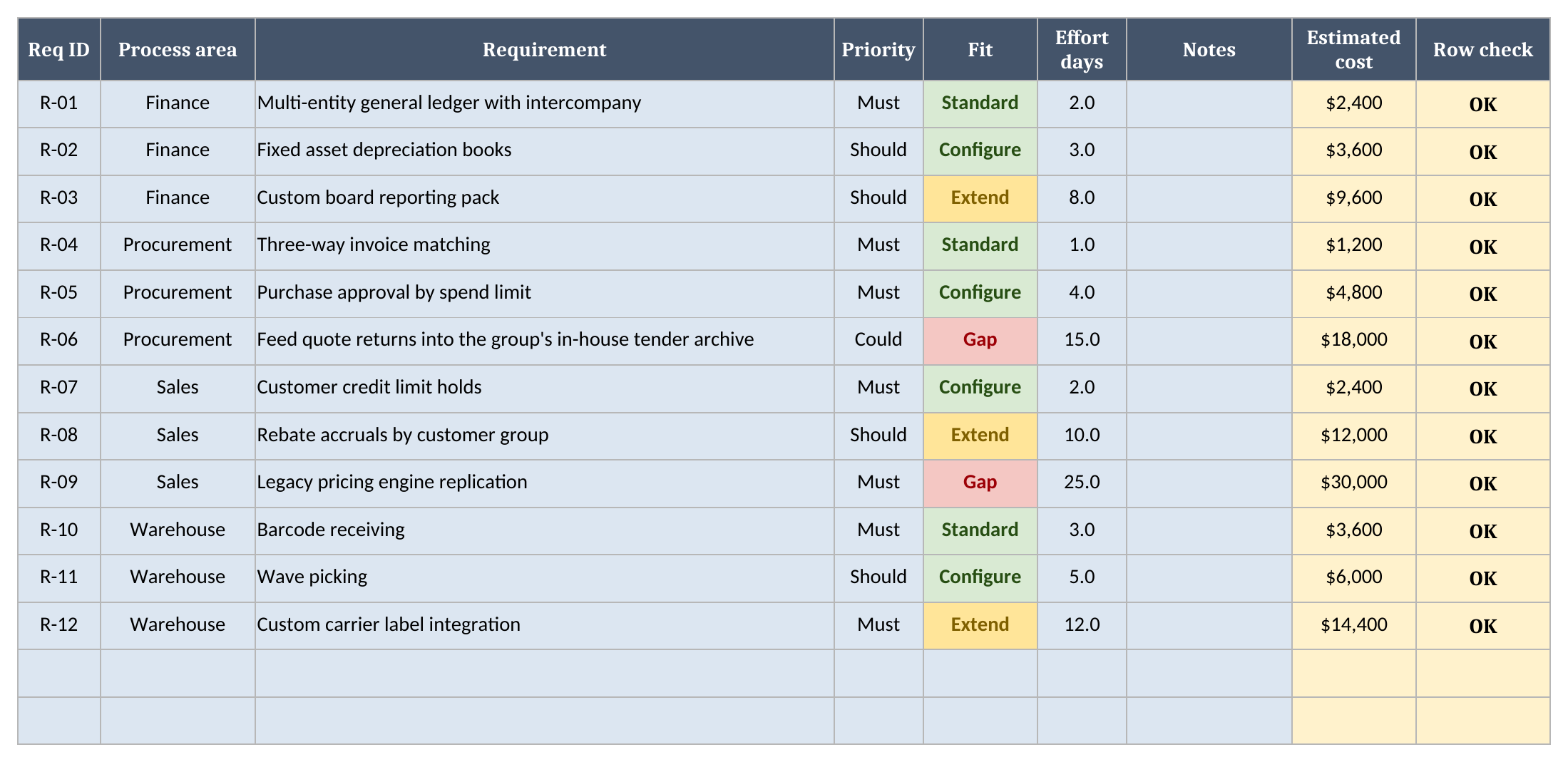
- Requirements has one row per requirement.
- Summary has one row per process area.
- Dashboard has the day rate and the results.
What the four categories mean
The four categories are my own working scale, not a Microsoft standard, so change the meanings if your project uses different words. Keep the order, because the order shows how far each item moves from the standard product. Standard and Configure stay close to it. Extend and Gap sit furthest from it, so they need the closest look.
| Category | What I mean by it |
|---|---|
| Standard | Works with no setup beyond normal parameters |
| Configure | Met through settings and workflows, with no code |
| Extend | Needs an extension, an ISV solution or a Power Platform build |
| Gap | No acceptable answer yet, so change the process or fund a build |
Microsoft’s guidance on extending your solution is worth reading before you approve an Extend line. It asks you to weigh added value against complexity, cost and risk. For Dynamics 365 Sales and Customer Service projects, see my guide on how to customize Dynamics 365 CRM. Many Configure and Extend answers also lean on Power Platform integration with ERP systems.
How to set it up
Setup takes a few steps, and you should do them in order, because Requirements reads the process areas from Summary and the Dashboard reads both sheets. Start by listing your process areas, then replace the sample rows, and finish by setting your own day rate once your partner has given you a real figure to use.
- If Excel opens the file in Protected View, click Enable Editing so the formulas calculate.
- On Summary, replace the sample process areas with your own.
- On Requirements, replace the sample rows. Pick an area, a priority and a fit from the dropdowns.
- Type an effort estimate in days for each row. Leave Notes for the reason behind the score.
- On Dashboard, replace the sample day rate with your partner’s rate.
When you add a requirement, type it in the next empty row. The calculated column is already filled down to the last row, so you never need to copy a formula. The same is true on Summary, so a new process area picks up its rollup as soon as you type its name.
I also keep one rule for the workshop. Score the requirement before you discuss the estimate. If the two happen together, people tend to pick the category that matches the number they already want.
How fit to standard is calculated
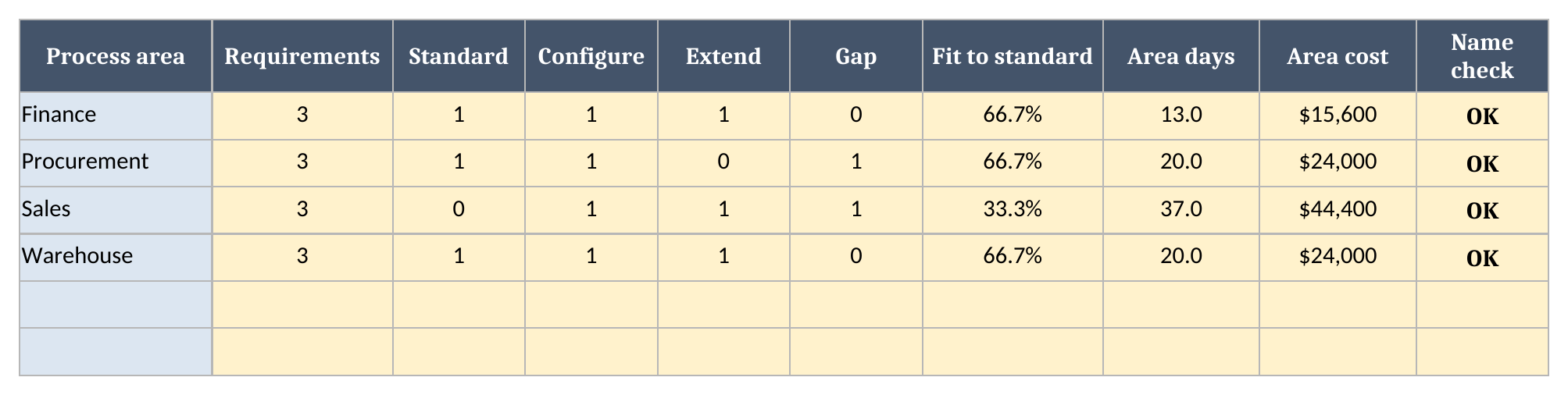
Fit to standard adds the Standard and Configure rows and divides by every requirement logged, so a requirement you have not scored yet lowers the percent until you score it. Each process area does the same sum on its own row, and an area with no requirements reads n/a, because a zero or a full score there would mislead the room.
The sample has 12 requirements and reads 58.3% overall. Finance reads 66.7%, Warehouse reads 66.7% and Sales reads 33.3%. Sales also carries 37.0 effort days, so it is the area I would look at first.
A worked example from the sample
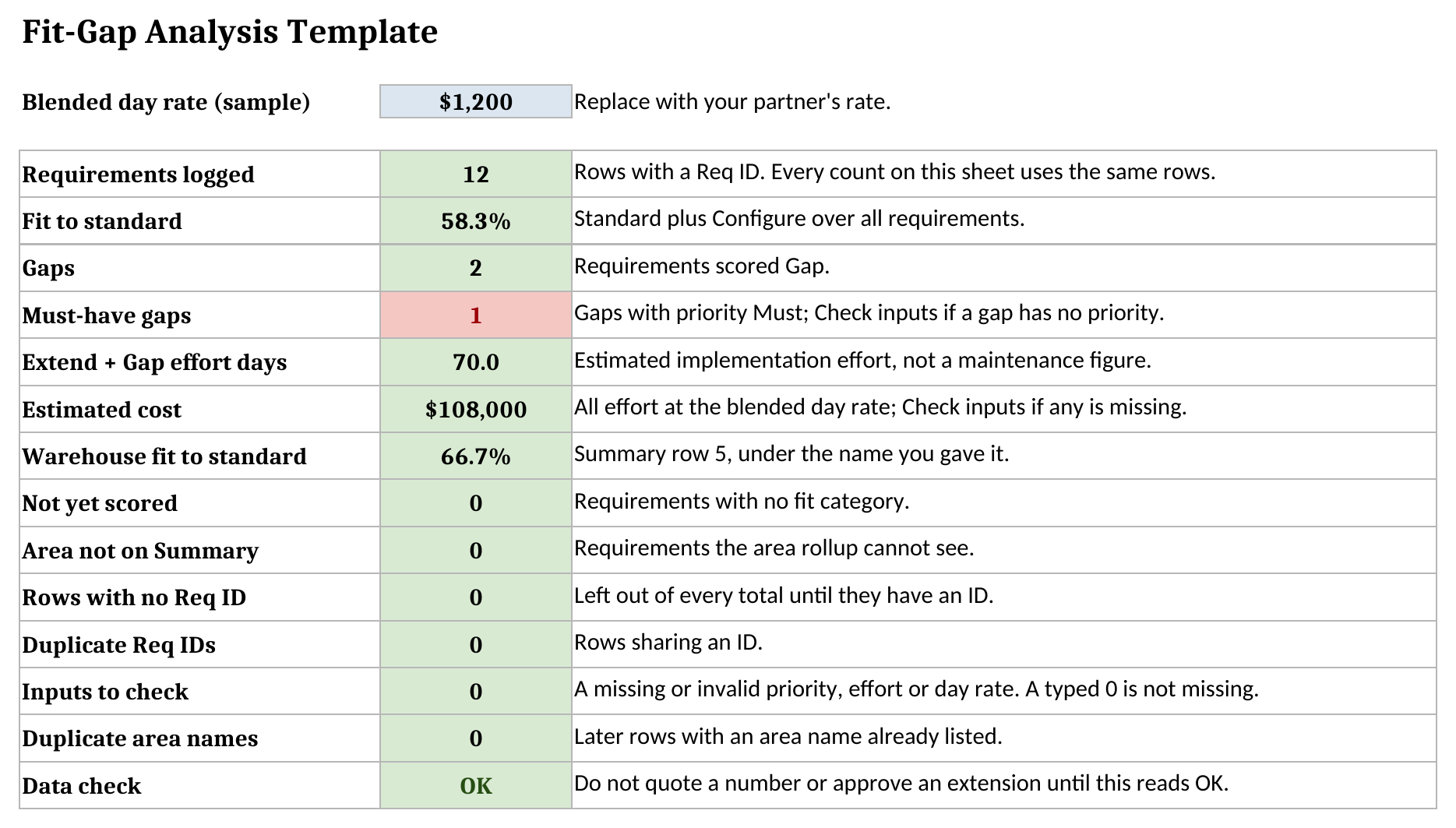
The sample uses a blended day rate of $1,200, which is an example and not a quote. On that rate the implementation effort comes to $108,000 in total. The numbers below come straight from the Dashboard sheet, so you can compare them with your own copy after you download the file and open it in Excel or Sheets.
| Metric | Value |
|---|---|
| Requirements logged | 12 |
| Fit to standard | 58.3% |
| Gaps | 2 |
| Must-have gaps | 1 |
| Extend + Gap effort days | 70.0 |
The must-have gap in the sample is the legacy pricing engine. Rescore it as Configure in your copy and the gap count falls, because the workbook counts what you decided and nothing else.
What a steering group should read first
A steering group should read Data check first, then the must-have gaps, because one unresolved must-have can stop a go-live while a percent looks healthy. After that, read Extend and Gap effort days. Those days are estimated implementation effort, and the percent then gives you the overall direction.
A Gap estimate stays provisional until you decide how to close it, and changing the process may remove it. Ongoing maintenance is a separate assessment that this file does not model, so make it for each extension you approve.
Bring those numbers to the partner conversation too. Our guide on how to choose a Microsoft Dynamics 365 partner explains what to ask for. A partner who has run this work should be able to defend every Extend line, and a good one will often argue you out of a few.
Using it in Google Sheets
The workbook is a plain .xlsx file with no macros, and Google Sheets can import it. Choose File, then Import, then Upload, pick the file, and choose Insert new sheet(s). Formatting can differ after an import, so check the Dashboard results, the dropdowns and the colours before you rely on your copy.
What the template does not do
This is a spreadsheet, so it has limits worth stating before you rely on it for a real decision. It does not tell you whether Dynamics 365 meets a requirement. You and your partner decide that, and the sample scores are fictional. It holds up to 499 requirements and 20 process areas, because the formulas and dropdowns stop at those rows.
The workbook warns you instead of guessing. Each row has a Row check, and Dashboard counts rows with no Req ID, duplicate IDs, areas not on Summary, missing priorities or effort, rows not yet scored and duplicate area names. A typed 0 counts as an answer, and a blank does not.
A missing effort or day rate shows Check inputs in place of a cost, because a lower total would look like good news. So does a negative value or one past the limits, which are 100,000 effort days and a rate of 1,000,000, because pasting a value bypasses the cell’s own validation. Area names and Req IDs are matched exactly, so a name like Fin* is not read as a pattern. Do not quote a number or approve an extension until Data check reads OK. More free tools sit on our tools page, and you can download the fit-gap analysis template when you are ready.
Frequently Asked Questions
What is the difference between fit-to-standard and fit-gap analysis?
Fit-to-standard compares your processes with the standard Dynamics 365 processes first. Fit-gap then looks at what is left and decides how to fill each gap.
What do Standard, Configure, Extend and Gap mean in this template?
Standard works with no setup beyond normal parameters. Configure uses settings and workflows. Extend needs an extension or an ISV solution. Gap has no acceptable answer yet. The scale is my own working practice.
How is the fit-to-standard percentage calculated?
It adds Standard and Configure requirements and divides by all requirements logged. An area with no requirements reads n/a, not zero.
Does the template work in Google Sheets?
The file is a plain .xlsx with no macros. In Google Sheets use File > Import > Upload and choose Insert new sheet(s). Formatting can differ, so check the results, dropdowns and colours after import.
Who should fill in the effort estimates?
In my practice the partner or internal lead who would build the item estimates it, and the business owner sets the priority. Keep those two roles apart.
Free tool
Calculate Your Dynamics 365 Migration ROI
See how much you could save with a free, instant ROI estimate. No signup required.