TL;DR
- This free workbook runs a go-live hour by hour, with owners, predecessors, go or no-go gates and rollback points.
- It weights progress by planned hours and reads Behind the minute a critical step passes its planned finish.
Most cutover plans start as a slide and then move into a chat thread. My cutover plan template is a working Excel file. You list the steps and their times. At each check-in you set the time and read the status.
Download the cutover plan template. It is a plain .xlsx with no macros and no sign-up. It covers the switch itself, from the freeze of the old system to the first hypercare check-in.
Video walkthrough
This short captioned video moves through the three working sheets in order. It opens on a critical step that has run past its planned finish. It then shows the go or no-go gates. It ends on the numbers a cutover lead reads at each check-in. Watch it first if you want the shape quickly.
Who this plan is for
I wrote this for project managers and cutover leads who run a Dynamics 365 go-live weekend and need one shared runbook. It suits a customer lead working with a partner. It also suits a partner lead who wants every owner reading the same sheet. It helps most from the first mock cutover to the morning users come back.
Microsoft describes cutover as the switch from the old system to the new one, when you can’t use either system and the window is usually less than 48 hours. That is why this plan counts hours, not days.
My ERP implementation project plan template holds cutover as one line in the wider schedule. This workbook is the detail behind that line. If you want help running the weekend, our services page explains how we work with project teams.
What is in the workbook
The workbook has four sheets in a fixed order, and each does one job. Instructions covers setup and limits. Runbook holds one row per cutover step, with its owner, start time, hours and status. Gates holds each go or no-go decision. Dashboard holds the as-of time and the headline numbers this page quotes.
- Instructions covers setup and the import route.
- Runbook has one row per step.
- Gates has one row per decision.
- Dashboard has the as-of time and the results.
How to set it up
Setup takes six short steps, and the order matters. Runbook reads the gate list, and Dashboard reads both sheets. List your gates first. Then replace the sample steps with your own. Finish by typing the as-of time when the run starts. After that, only the status and the time change.
- If Excel opens the file in Protected View, click Enable Editing so the formulas calculate.
- On Gates, list your go or no-go decisions and who owns each one.
- On Runbook, replace the sample steps. Give each one a start time, hours from 0 to 1,000 and an owner.
- Pick a predecessor from the Step ID list and a gate from the Gate ID list.
- Mark Critical path and Rollback point with Y or N.
- On Dashboard, type the as-of time at each check-in.
Type a new step in the next empty row. The calculated columns are already filled down to the last row, so you never copy a formula. The same is true on Gates.
Microsoft says a cutover plan should hold the order and timing, the owner and backup owner, the instructions, the verification and sign-off steps, and a rollback plan. Runbook covers order, timing and owner. It has no backup owner, instruction or sign-off columns. Put those in the Activity text or in a linked document.
How lateness is decided
A step reads Late when it is not Done and the as-of time is past its planned finish. The comparison uses whole minutes, so two equal times never flag because of rounding. When a critical step goes late, the status turns to Behind straight away. That one word is what a cutover lead needs at a check-in.
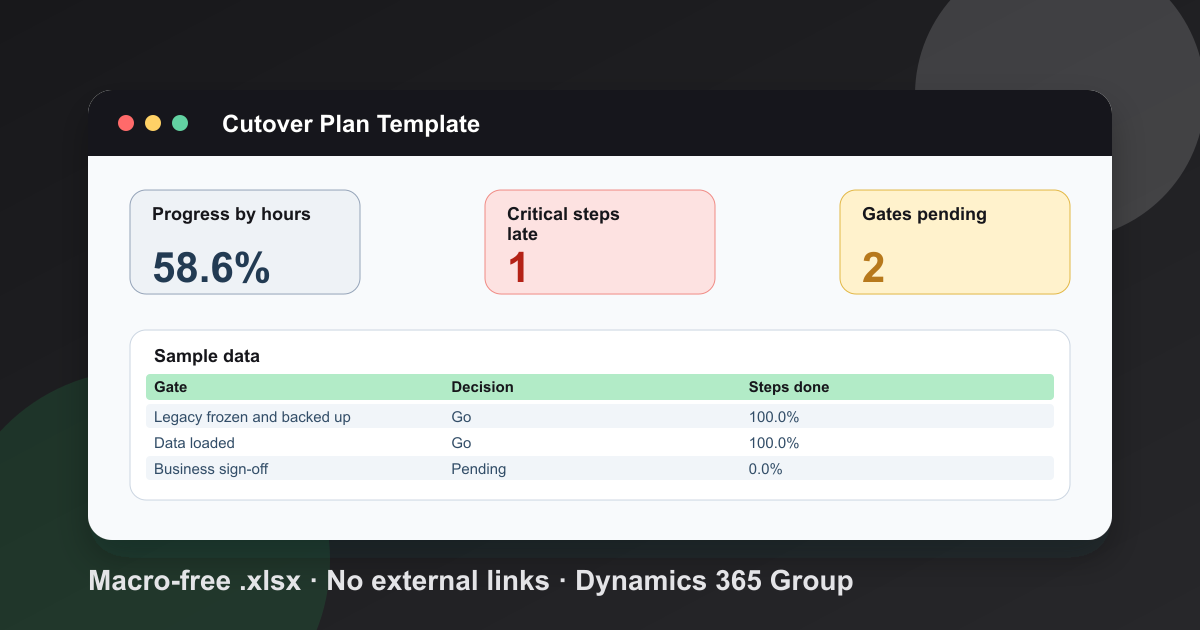
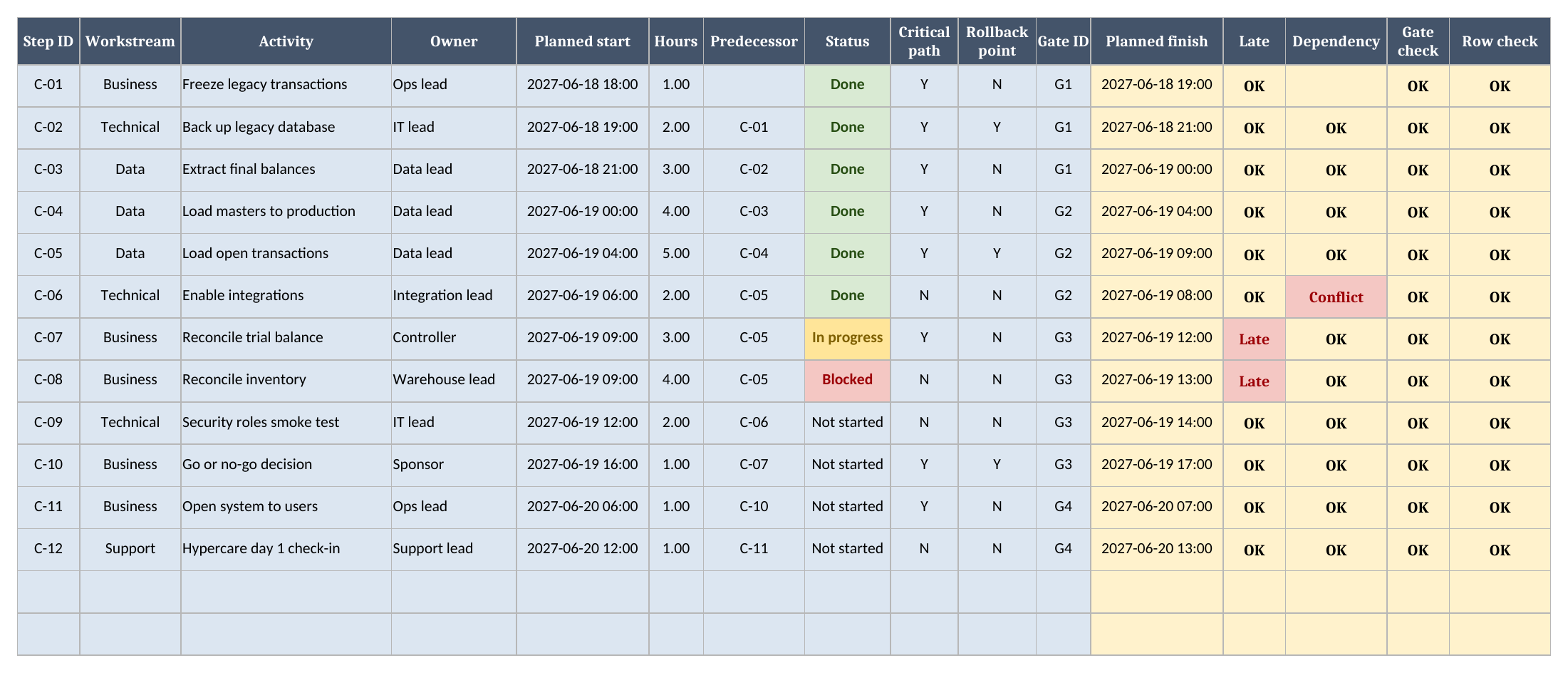
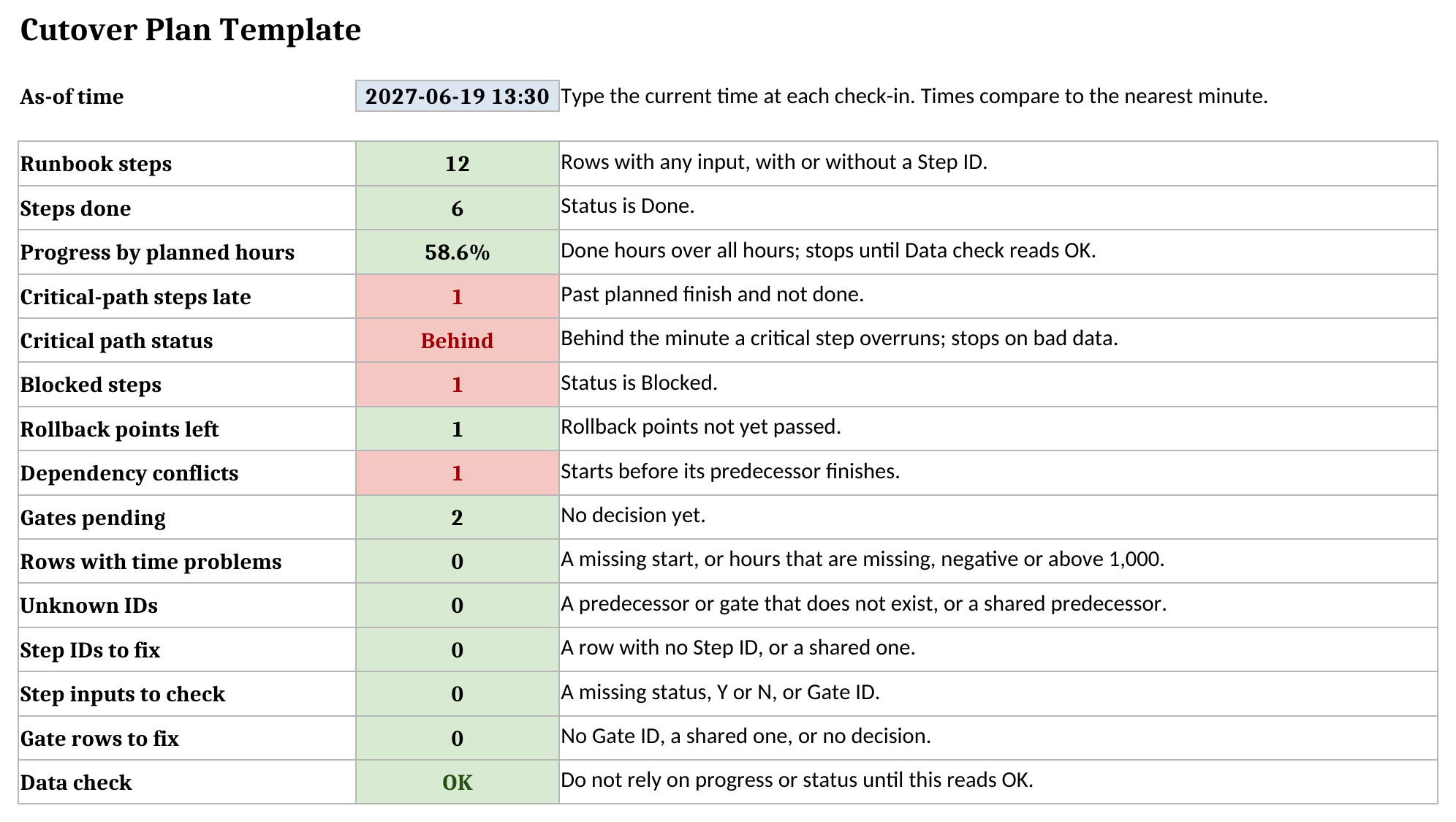
Progress is weighted by planned hours, not counted by step. A long load moves the number more than a short check. The sample has 6 of 12 steps done and reads 58.6%. It reads Behind because the trial balance reconciliation should have finished at 2027-06-19 12:00 and the as-of time is 2027-06-19 13:30.
A blank start, hours that are blank, negative or above 1,000, or a blank as-of time reads Check times. Progress shows the same until you fix it. A row with no Step ID still counts, reads Check ID, and stops progress and status as Check data. A percent built on a bad row looks fine and is wrong.
How dependency conflicts are flagged
A step shows Conflict when its predecessor finishes after the step starts. The check reads the Step ID you typed, so your own ID format works. IDs are compared exactly as typed, so a star or a question mark in an ID is only a character. An unknown predecessor or gate reads Check ID, and Dashboard counts those rows.
In the sample, integrations start at 2027-06-19 06:00 while open transactions finish at 2027-06-19 09:00. The sheet shows 1 conflict. Sequence matters most around data, so read my guide on how to migrate data to Dynamics 365 alongside this sheet.
Go or no-go gates and rollback points
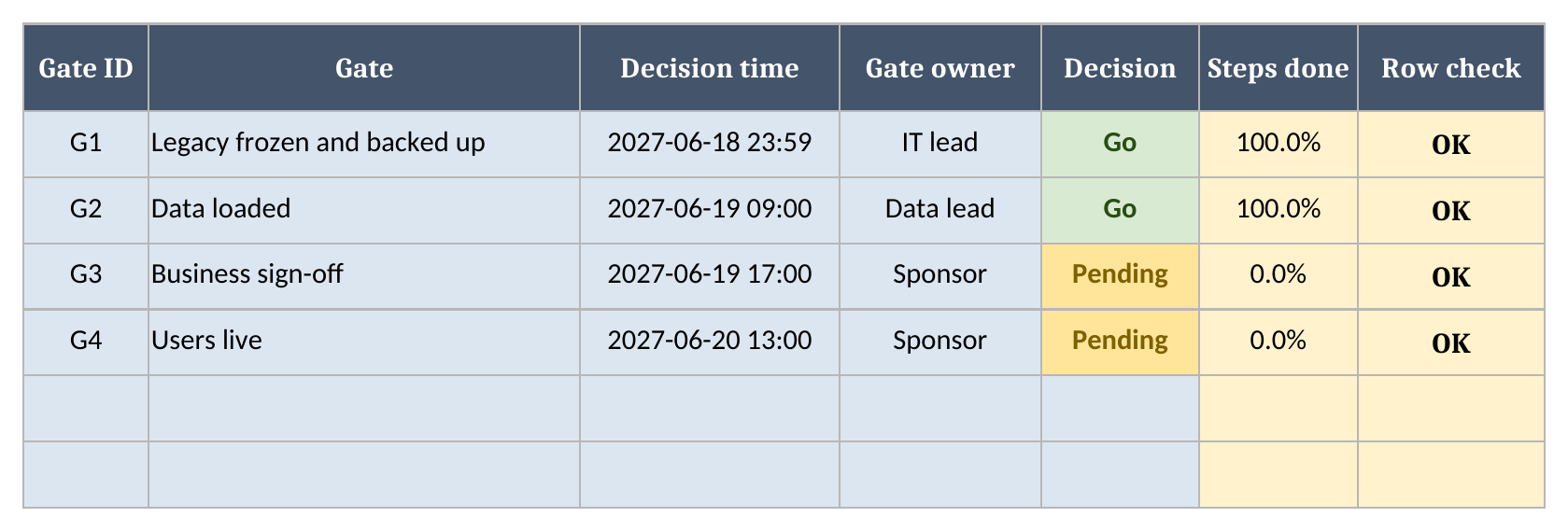
A gate is a decision with a time and an owner. Microsoft says to decide who makes the final go or no-go decision and to set criteria for it. The Gates sheet records each decision and the share of its steps done. A gate with no steps reads n/a, never zero, so an empty gate cannot pass as finished.
The sample has 2 gates pending. The data gate shows 100.0% of its steps done, and the business sign-off gate shows 0.0%. It also has 1 rollback point left and 1 blocked step.
Where to put rollback points is my own practice, not a Microsoft rule. I put one after the legacy backup, one after open transactions load, and one at the decision itself. A rollback plan is only as good as its last test. If you are coming from AX 2012, read the Dynamics 365 upgrade process, which covers that migration path.
How many times to rehearse
Microsoft gives no fixed number of rehearsals, and I would not invent one. It says to do the mock cutover several times until you are confident that everything goes smoothly. Use the same data, tools and people, and follow the same steps and timing. Run this workbook in each rehearsal and compare planned hours with what happened.
Check the wider readiness list too. Microsoft’s go-live checklist covers testing, data migration and cutover. Finance and operations projects also complete a Go-live Readiness Review before production is deployed. After go-live, plan for monitoring Dynamics 365 and a handover to managed support.
Using it in Google Sheets
The workbook is a plain .xlsx file with no macros. Formatting can differ in Google Sheets, so check it yourself. Choose File, then Import, then Upload, pick the file, and choose Insert new sheet(s). Check the sample results, the dropdowns and the status colours after import. Do this before you use your copy for a cutover.
What the plan does not do
This is a spreadsheet, so it has limits worth stating before you run a weekend on it. It does not move times for you when a step overruns, and it does not alert anyone. Someone updates the status and the as-of time at each check-in. It holds up to 299 steps and 49 gates, because the formulas stop there.
Dashboard counts rows with time problems, unknown IDs, Step IDs to fix, missing inputs and gate rows to fix. Progress stops until Data check reads OK. Critical path status stops on ID, input and gate problems and on a time problem in a critical step. A time problem on a non-critical step leaves the status as it is, and Data check still warns. For live notifications, keep a chat channel beside it and treat this file as the record. More free tools sit on our tools page, and you can download the cutover plan template when you are ready.
Frequently Asked Questions
What is the difference between a cutover plan and a go-live checklist?
Microsoft's go-live checklist confirms readiness across testing, data migration and cutover. Its cutover guidance describes the cutover plan as the detailed list of tasks you do during the cutover, with order, owners, verification and a rollback plan.
How does the template decide a step is late?
A step is late when it is not Done and the as-of time is past its planned finish. The comparison uses whole minutes, so equal times never flag on rounding noise.
What is a rollback point and where should I put them?
It is the last moment you can still return to the old system cleanly. In my practice I put one after the legacy backup, one after open transactions load and one at the go or no-go decision.
Does the template work in Google Sheets?
The file is a plain .xlsx with no macros. In Google Sheets use File > Import > Upload and choose Insert new sheet(s). Check the sample results, dropdowns and status colours after import before using the workbook for cutover.
How many times should we rehearse the cutover?
Microsoft does not give a number. It says to do the mock cutover several times until you are confident that everything goes smoothly, using the same data, tools and people.
Free tool
Calculate Your Dynamics 365 Migration ROI
See how much you could save with a free, instant ROI estimate. No signup required.