TL;DR
- This free workbook tracks each data object from source to target, with an owner, a load order and mock-load results.
- It reconciles the chosen mock by object and reads Ready only when cleansing, sign-off and the numbers all agree.
In my experience a migration plan ends up split across a slide deck and a few spreadsheets. My data migration plan template puts it in one working workbook. You list the objects, log each mock load, and it shows what reconciles and what is ready.
Download the data migration plan template. It is a plain .xlsx with no macros and no sign-up. For the steps themselves, read my guide on how to migrate data to Dynamics 365. This page covers the plan.
Video walkthrough
This short captioned walkthrough moves through the three working sheets in order. It starts with an object that loads too early, then shows how each mock is logged, and ends with the numbers you would bring to a readiness review. Watch it before you open the file if you want the shape of it quickly.
Who this plan is for
I wrote this for data leads and project managers on an ERP or Dynamics 365 project who need one view of migration status. It suits a customer data lead working with a partner, or a partner who wants one shared list. It works for a move from a legacy ERP as well as from an older Microsoft product.
Microsoft says you should include data migration activities in your project plan and allocate enough time and people to them. My ERP implementation project plan template gives data its own phase, and this workbook is the detail behind that phase.
If your source is an older Microsoft system, read Dynamics GP vs Dynamics 365 or migrating Dynamics 365 on-premises to online as well. If you want help running the work, our services page explains how we work with project teams.
What is in the workbook
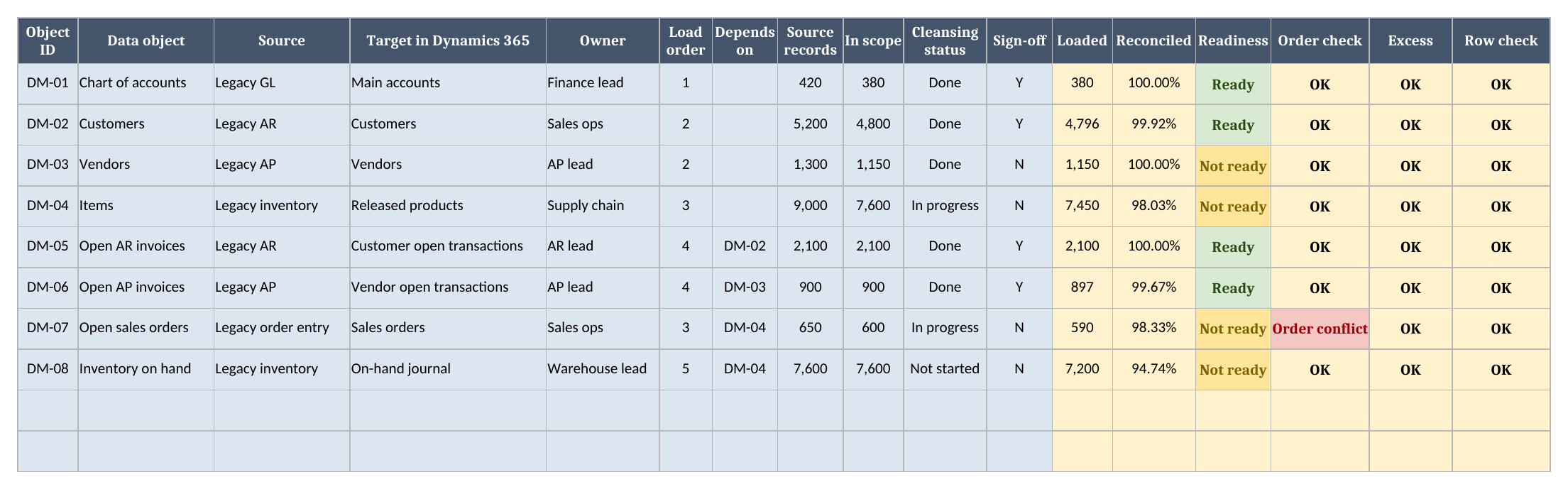
There are four sheets in a fixed order, and each one does a single job. Instructions covers setup and limits. Objects holds one row per data object, from chart of accounts to inventory on hand. Loads holds what each mock cycle moved. Dashboard holds the threshold, the mock to report, and the headline numbers that this page quotes.
- Instructions covers setup and the import route.
- Objects has one row per data object.
- Loads has one row per object per mock.
- Dashboard has the threshold and the results.
How to set it up
Setup takes a few steps, and you should do them in order, because Loads reads the object list and the Dashboard reads both sheets. Start by listing your data objects with their load order, then log your first mock cycle, and finish by setting the threshold and the mock that you want the totals to report on.
- If Excel opens the file in Protected View, click Enable Editing so the formulas calculate.
- On Objects, replace the sample rows. Give each object an ID, an owner and a load order.
- Use Depends on to point an object at the one that must load first.
- Enter source records and the records in scope after cleansing.
- On Loads, add one row per object per mock cycle, with records loaded and failed.
- On Dashboard, set the threshold and the mock to report.
When you add an object, type it in the next empty row. The calculated columns are already filled down to the last row, so you never need to copy a formula. The same is true on Loads, so a new mock cycle counts as soon as you type its number.
Keep the scope figure honest. It is the number of records you intend to load after cleansing, not the size of the source table. Reconciliation against the wrong base will look fine and mean nothing.
How readiness is decided
An object reads Ready only when four things agree, because any one alone can mislead you: cleansing is Done, sign-off is Y, the load order is OK, and reconciliation sits between the threshold and 100 percent. With no records in scope, reconciliation reads n/a and the object stays Not ready.
Reconciled measures record-count coverage only. Matching counts can sit beside wrong amounts or balances. Microsoft says to reconcile migrated balances and open transactions against the legacy systems, and subledgers against the ledger, before go-live. So I treat sign-off as the business owner’s acceptance after those amount, balance, key and relationship checks, with the evidence kept separately.
The upper limit matters too. An object that loads more records than its scope reads Over-loaded, because extra records usually mean a duplicate or a bad filter. It does not read Ready just because the percentage passed the threshold.
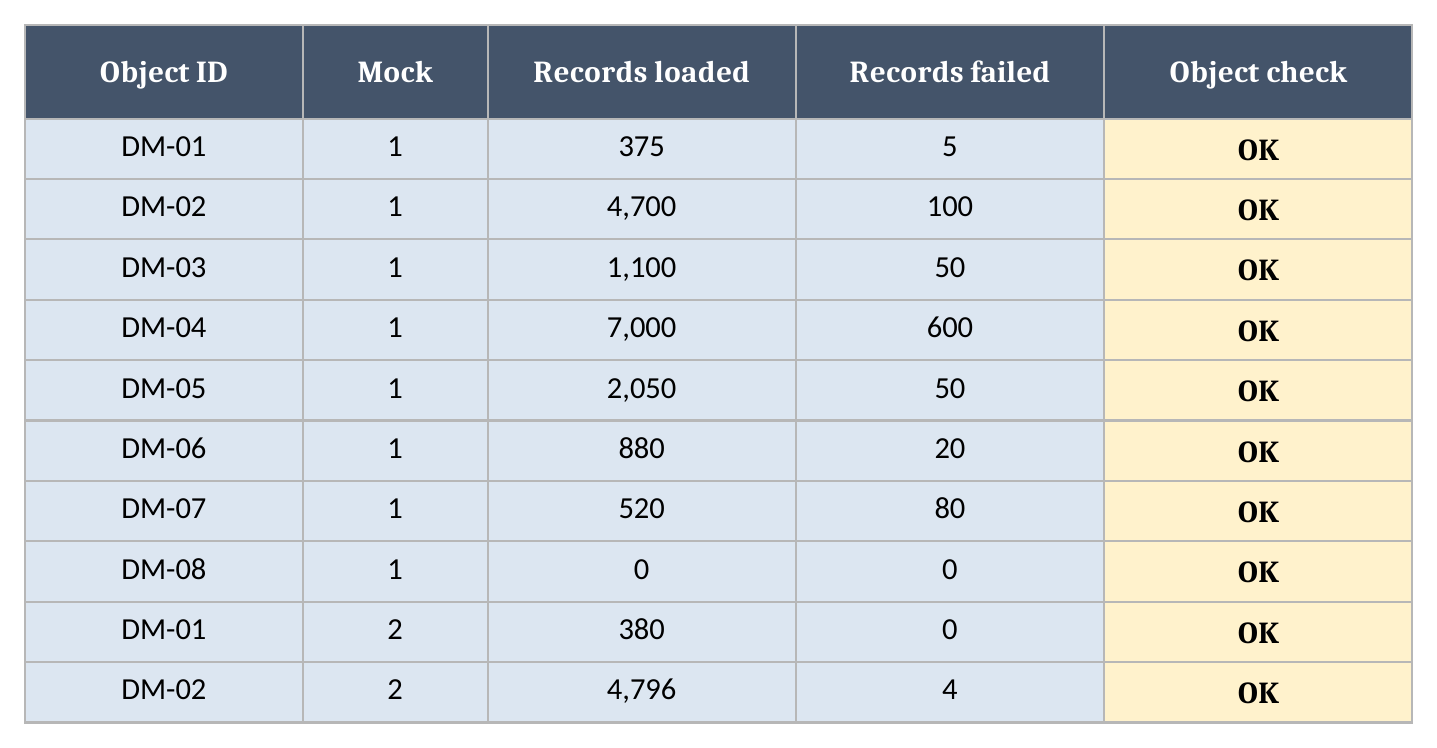
The sample threshold is 99.5%. That figure is my own practice, not a Microsoft number, and it is not an acceptable financial discrepancy, so set one that matches your risk. The comparison uses the unrounded value. Customers show how it works: 4,796 of 4,800 records loaded, which reconciles at 99.9% and clears the sample threshold.
How load-order conflicts are flagged
An object shows Order conflict when it loads at or before the object it depends on, and the check reads the Object ID you typed, so your own ID format works. A blank load order reads Check order, and an unknown dependency reads Check ID, so a missing value never passes quietly as a clean sequence in the plan.
In the sample, items and open sales orders share a load order, and orders depend on items. Assign sales orders a later order and the conflict clears. Microsoft lists the sequence and dependencies as part of a migration strategy, and finance and operations apps let you sequence data entities inside data packages.
A worked example from the sample
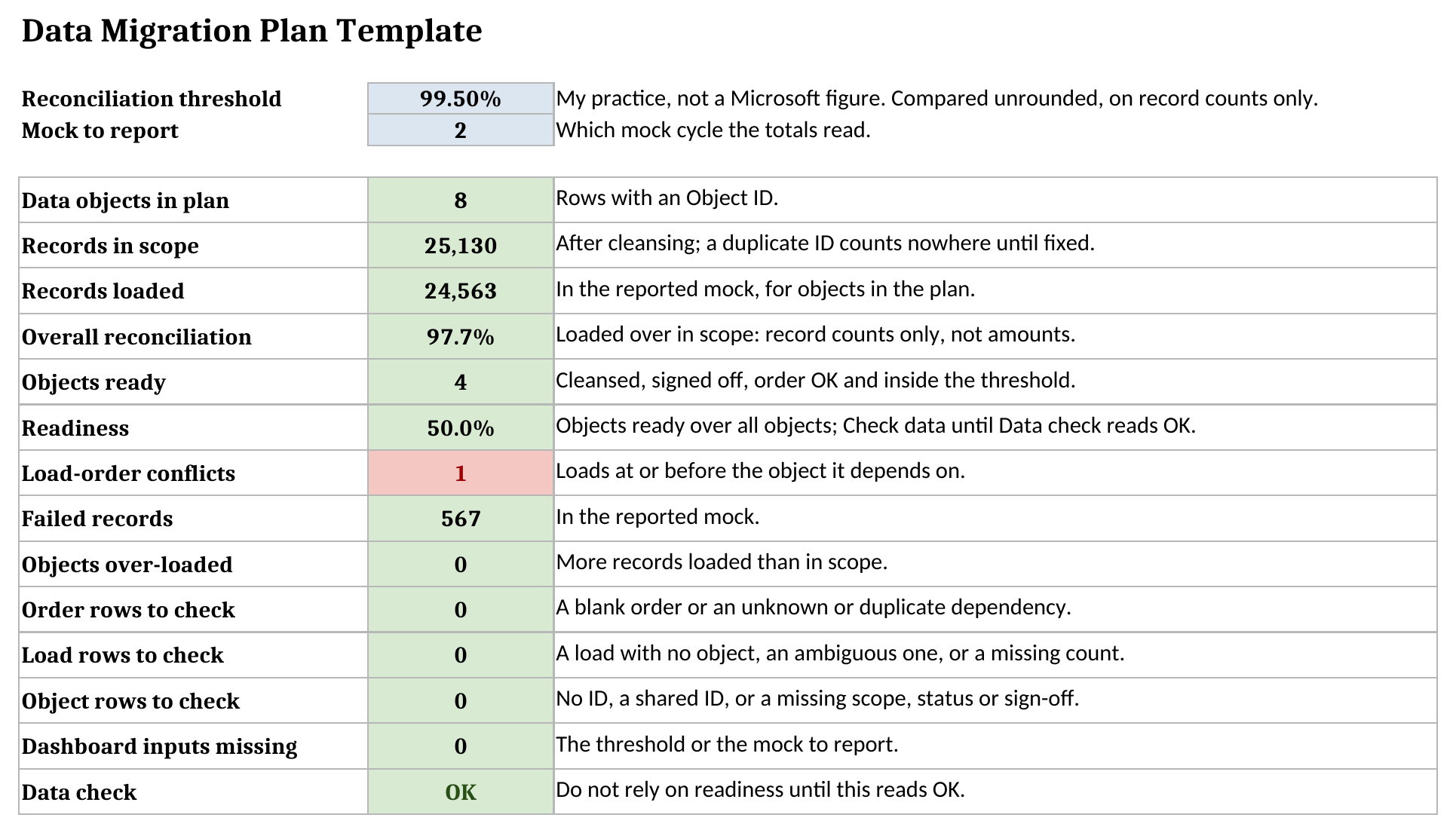
The sample reports mock cycle 2 across 8 data objects. Most records have moved, but several objects are still waiting on cleansing or sign-off, so the gap below is the one to watch. The numbers below come straight from the Dashboard sheet, so you can compare them with your copy after you download the file and open it.
| Metric | Value |
|---|---|
| Records in scope | 25,130 |
| Records loaded | 24,563 |
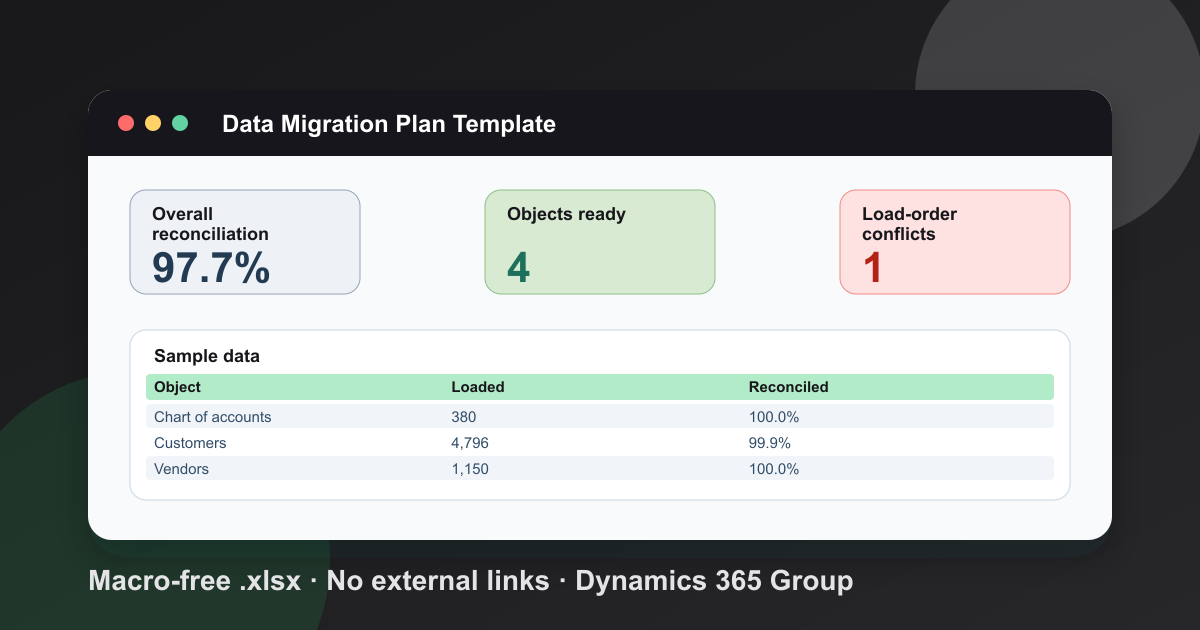
| Overall reconciliation | 97.7% |
| Objects ready | 4 |
| Readiness | 50.0% |
| Load-order conflicts | 1 |
| Failed records | 567 |
| Objects over-loaded | 0 |
Look at the gap between those two percentages. Overall reconciliation is high, while readiness is much lower, because records can move before the business has accepted them. That gap is the point of the sheet.
How many mock loads to plan
There is no fixed number of mock loads that fits every project, so I plan by results and not by a count. Microsoft says to test and verify your data migration at least once in your system integration and user acceptance testing environments. Keep cycling until the failed records stop surprising you and the owners accept the reconciliation.
Business Central projects can start smaller. Microsoft suggests setting up a company in a sandbox so that users can practice first. For finance and operations apps, read the product-specific data guidance. Before a production load, confirm a tested recovery plan. Microsoft documents point-in-time restore for finance and operations and environment restore for Business Central. On Dataverse, see my guide to backing up Dynamics 365.
Using it in Google Sheets
The workbook is a plain .xlsx file with no macros, and Google Sheets can import it. Choose File, then Import, then Upload, pick the file, and choose Insert new sheet(s). Formatting can differ after an import, so check the Dashboard results, the dropdowns and the colours before you rely on your copy.
What the plan does not do
This is a spreadsheet, so it has limits worth stating before you rely on it. It does not move or map data, and it does not read your source system or compare amounts. Someone types the counts, so the counts are only as good as the query behind them. It holds up to 299 objects and 999 load rows, because the formulas stop there.
It warns you instead of guessing. Dashboard counts blank orders, unknown dependencies, loads with no object, missing counts, rows with no ID and shared IDs. A shared ID counts nowhere until you fix it, because it would count the same load twice. If an object loads for two legal entities, give each its own ID. Readiness reads Check data until Data check reads OK.
More free tools sit on our tools page, and you can download the data migration plan template when you are ready.
Frequently Asked Questions
What should a data migration plan include?
At minimum, the objects in scope, source and target, an owner, the load sequence and dependencies, and how you will test and reconcile each load. Microsoft lists sequence, dependencies and roles as parts of a migration strategy.
How does the template decide an object is ready to load?
It reads Ready only when cleansing is Done, sign-off is Y, the load order is OK and the record-count reconciliation sits between the threshold and 100 percent. The threshold is my own practice, so set your own.
Why does load order matter in an ERP data migration?
A record that points at another record cannot load before it. Open invoices need customers first. The template flags an object that loads at or before the object it depends on.
Does the template work in Google Sheets?
The file is a plain .xlsx with no macros. In Google Sheets use File > Import > Upload and choose Insert new sheet(s). Formatting can differ, so check the results, dropdowns and colours after import.
How many mock loads should we plan before go-live?
I do not use a fixed number. Microsoft says to test and verify your data migration at least once in your system integration and user acceptance testing environments. Plan enough cycles to clear the failures you find.
Free tool
Calculate Your Dynamics 365 Migration ROI
See how much you could save with a free, instant ROI estimate. No signup required.