TL;DR: Microsoft provides system-managed backups of every Dynamics 365 environment — retained for 7 days for most environments and up to 28 days for qualifying production environments (Microsoft Learn). That window is too short for HIPAA, SOX, and FINRA compliance, which require 6–7 years of retention. You can close the gap with manual backups, Azure Synapse Link for continuous replication, and third-party tools for record-level recovery and long-term archival. This guide covers each option, the compliance requirements that drive retention decisions, and the recovery practices that reduce downtime.
Why Dynamics 365 Data Backups Matter
Dynamics 365 stores customer records, financial transactions, supply chain data, and operational workflows in Dataverse. Losing access to that data — through accidental deletion, a failed customization, a ransomware attack, or a tenant-level disruption — can halt business operations within hours. A backup strategy is what determines whether that disruption lasts minutes or weeks.
In my work with Dynamics 365 deployments, the organizations that recover fastest from data incidents are the ones who planned for failure before it happened. They know their retention windows, they have tested their restore process, and they have copies outside the primary tenant.
Microsoft’s Shared Responsibility Model
Microsoft operates Dynamics 365 under a shared-responsibility model. Microsoft protects the underlying infrastructure — physical servers, networking, storage redundancy, and data center availability. Your organization is responsible for ensuring that backup and recovery processes meet your business requirements, including retention windows, recovery objectives, and regulatory obligations.
The built-in system-managed backups cover most day-to-day recovery scenarios, but they have fixed retention periods and operate at the environment level. Understanding where Microsoft’s responsibility ends and yours begins is the first step in building an effective backup strategy. For a broader overview of the platform’s architecture and capabilities, see our guide to Microsoft Dynamics 365.
Compliance and Regulatory Retention Requirements
Many industries face legally mandated data retention periods that far exceed Microsoft’s default 7-day backup window. If your organization is subject to these regulations, relying solely on system-managed backups will leave you non-compliant.
- HIPAA requires covered entities to retain required documentation — including policies, procedures, and compliance records — for 6 years from the date of creation or the date it was last in effect, whichever is later (45 CFR §164.530(j), via eCFR.gov). Individual state laws may impose longer retention periods for patient health records.
- Sarbanes-Oxley (SOX) Section 103 requires registered public accounting firms to retain audit workpapers for 7 years (SEC.gov). Many publicly traded companies adopt comparable retention standards for data stored in their financial systems, including Dynamics 365 Finance.
- FINRA Rule 4511 requires member firms to preserve books and records for a minimum of 6 years (FINRA).
These regulations mean that organizations in healthcare, finance, and brokerage need long-term data archiving that extends well beyond what Microsoft’s environment backups provide. The 7-day default window covers operational recovery — rolling back a bad deployment — but it does not satisfy legal retention obligations.
How Microsoft’s Built-In Backup System Works
Microsoft automatically creates system-managed backups of every Dynamics 365 environment. These backups require no configuration, run on a schedule managed by Microsoft, and are accessible through the Power Platform Admin Center. Understanding how they work — and where their limits are — is essential for deciding what additional measures your organization needs.
System-Managed (Automated) Backups
According to Microsoft Learn, system-managed backups are retained for 7 days for most environments. Production environments with Dynamics 365 applications may qualify for extended retention up to 28 days, depending on the environment type and licensing.
Key characteristics of system-managed backups:
- They do not count against your Dataverse storage capacity
- They include all data, customizations, solutions, apps, and environment configurations
- They support point-in-time restore, allowing you to roll back to a specific timestamp within the retention window
- They can only be restored within the same tenant
What Gets Included in a Backup
A system-managed or manual full backup captures the complete state of the environment at the point in time the backup is taken. This includes:
- All Dataverse table data (accounts, contacts, opportunities, custom entities, and more)
- All solutions and customizations (entities, fields, forms, views, business rules, workflows)
- Environment settings and configuration data
- Canvas apps, model-driven apps, and Power Automate flows associated with the environment
- Security roles and field-level security profiles
This comprehensive scope means that a restore effectively reverts the entire environment to its previous state. It also means there is no middle ground — you cannot pick and choose which elements to restore.
Built-In Backup Limitations
Microsoft’s environment backups have three notable constraints that shape every backup decision:
- Fixed retention. Once the 7-day (or 28-day) window expires, the backup is permanently deleted. There is no archive tier or extended storage for older backups.
- Environment-level granularity only. Restoring affects the entire database. If a single user accidentally deletes one contact record, recovering it requires rolling back the full environment to a point before the deletion — which also reverts every other change made since then.
- Tenant-scoped recovery. Backups can only be restored within the same tenant. There is no built-in mechanism to restore a Dynamics 365 backup to a different tenant or an isolated recovery environment.
Microsoft has introduced a Recycle Bin feature for Dataverse that partially addresses the record-level recovery gap — allowing administrators to restore recently deleted records without a full environment rollback. Check Microsoft Learn for current availability and limitations, as the feature’s scope and retention period continue to evolve. Even with the Recycle Bin, the built-in system does not provide multi-year retention or cross-tenant copies.
How to Create a Manual Backup in Dynamics 365
A manual backup creates a named, on-demand snapshot of the entire environment, retained under the same rules as system-managed backups: 7 days for most environments, up to 28 days for qualifying production environments (Microsoft Learn). Create one before any change that carries risk — solution deployments, data migrations, structural modifications, or platform updates — so you have a labeled restore point tied to a specific event.
Step-by-Step Manual Backup Process
- Sign in to the Power Platform Admin Center using an account with System Administrator or equivalent privileges.
- Select Environments from the left-hand navigation.
- Click the name of the environment you want to back up.
- In the environment detail page, select Backup and restore from the top command bar.
- Click Create manual backup (in some interface versions, this may appear as Backup or Create backup).
- Enter a backup name — use something descriptive and dated, such as “Pre-deployment 2026-06-26” or “Before data migration.”
- Add optional notes explaining the reason for the backup (the deployment, the change, the risk).
- Review the backup scope (Microsoft creates a full backup by default, including all data and customizations).
- Click Create or Confirm to initiate the backup.
Manual backups do not extend the retention window — they follow the same 7-day or 28-day limit. They do give you a labeled restore point tied to a known change, which makes rollback faster and less error-prone when something goes wrong after a deployment.
When to Create Manual Backups
Create a manual backup before any of these events:
- Deploying a new solution, managed package, or hotfix
- Running a data migration or bulk import that modifies existing records
- Changing security roles, team structures, or business unit hierarchies
- Applying a platform update, version upgrade, or major release wave
- Restructuring entities, relationships, or business process flows
- Modifying Power Automate flows that write data to Dataverse on a large scale
The general principle: if the change could alter or delete data in a way that is hard to reverse, take a backup first.
How to Restore a Dynamics 365 Environment from a Backup
Restoring from a backup reverts the environment to a previous state. Microsoft provides two restore paths: restoring from a system-managed backup (point-in-time) and restoring from a named manual backup. Both are initiated from the Power Platform Admin Center.
Restore Process
- Open the Power Platform Admin Center and select the environment.
- Click Backup and restore.
- Choose Restore environment (or Restore, depending on your interface version).
- Select the backup you want to restore from — either a system-managed point-in-time backup or a named manual backup.
- For point-in-time restores, select the specific date and time within the retention window.
- Choose whether to restore in place (overwriting the current environment) or to a new environment (creating a copy). Restoring to a new environment is safer for verification purposes.
- Confirm the restore operation.
Full environment restores can take anywhere from several minutes to several hours, depending on the database size and the amount of customization in the environment. Plan for downtime and communicate the maintenance window to affected users.
Restoring to a new environment (a copy) is the approach I recommend for most recovery scenarios. It lets you verify the restored data and customizations before switching over, and it avoids overwriting recent changes that may still be needed.
What to Check After a Restore
After the restore completes, verify the following before returning the environment to production use:
- Data integrity: Spot-check critical records to confirm they match the expected state.
- Customizations: Verify that solutions, forms, views, and business rules are intact and functioning.
- Integrations: Test connections to external systems (ERP, marketing automation, reporting tools) to ensure they still authenticate and sync correctly.
- Security: Confirm that security roles and permissions are applied correctly.
- Power Automate flows: Check that flows are in the expected state (active or inactive) and are running as intended.
Documenting this checklist as part of your recovery runbook ensures consistent verification across every restore.
Extending Protection Beyond the Default Window
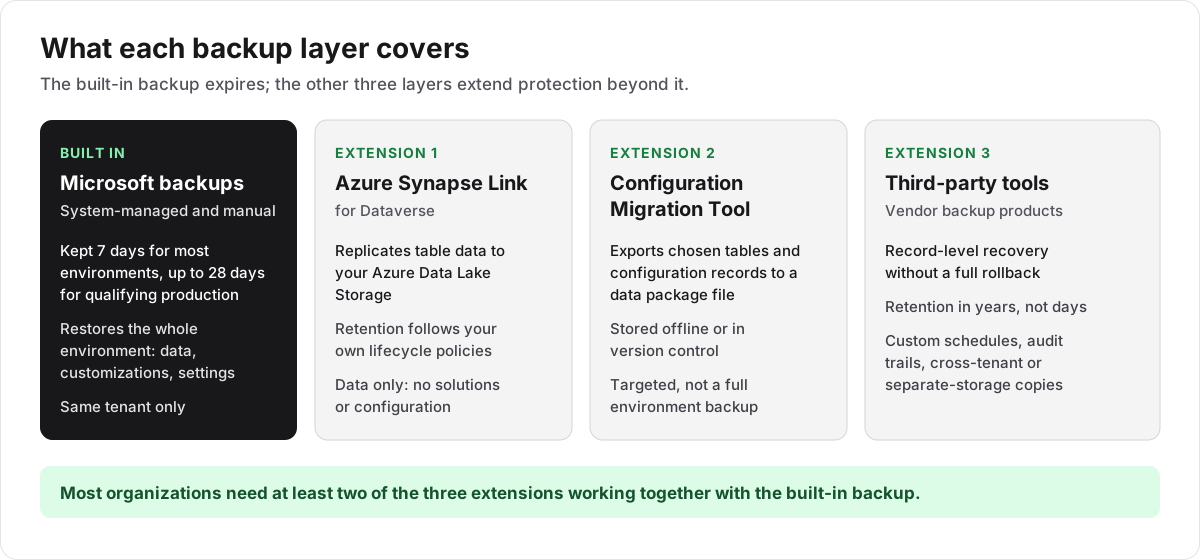
For many organizations, the built-in 7-to-28-day window is not enough. Regulatory requirements, internal policies, and the need for historical reporting all push retention well beyond a month. Three approaches can close that gap — and most organizations will need at least two of them working together.
Azure Synapse Link for Dataverse
Azure Synapse Link for Dataverse continuously replicates Dataverse table data into Azure Data Lake Storage Gen2. Once configured, data flows from Dynamics 365 into your own Azure storage on a recurring schedule, where you control retention entirely.
Key points about this approach:
- Independent retention. Data stored in Azure Data Lake Storage is governed by your own lifecycle management policies, not Microsoft’s 7-day window. You can configure retention for years to meet HIPAA, SOX, or FINRA requirements.
- Near-real-time replication. Changes in Dataverse sync to Azure Data Lake Storage with minimal latency, giving you a current copy without manual exports.
- No production impact. Queries and analytics run against the Azure copy, not against your Dynamics 365 environment, so reporting workloads do not affect transactional performance.
- Historical snapshots. Azure Data Lake Storage supports versioning and time-travel queries, allowing you to reconstruct data states at specific points in time.
- Analytics value. The replicated data is queryable in Azure Synapse Analytics and Power BI, which adds reporting capability beyond pure backup.
Azure Synapse Link replicates data — not customizations, solutions, or environment configuration. It is a data-tier backup, not a full environment backup. You still need the built-in system for customizations and configuration, but Azure Synapse Link solves the record-level and long-term retention problem that the built-in system cannot.
Configuration Migration Tool
For smaller-scale exports focused on configuration data rather than full database copies, the Configuration Migration Tool (available through the Power Platform CLI and NuGet packages) lets you export specific tables and configuration records to a data package file.
This tool is useful for:
- Backing up entity definitions, option sets, and configuration records before changes
- Preserving environment-specific settings that are not captured in solution exports
- Creating portable data packages that can be stored offline or in version control
The Configuration Migration Tool does not replace full environment backups. It provides targeted preservation of configuration data that may be difficult to reconstruct manually.
Third-Party Backup Solutions
Independent software vendors offer backup and recovery tools purpose-built for Dynamics 365 and the Power Platform. These tools add capabilities that the built-in system does not provide — most importantly, granular record-level recovery and retention measured in years rather than days.
Evaluate third-party backup solutions if your organization needs:
- Record-level recovery — restoring individual contacts, accounts, or transactions without rolling back the entire environment. This is the single most common gap that drives organizations to third-party tools.
- Long-term archival — maintaining accessible copies of Dynamics 365 data for multi-year retention to satisfy HIPAA, SOX, FINRA, or other regulatory mandates.
- Cross-tenant or cross-storage backup — copying data to a separate tenant, subscription, or storage account for resilience against tenant-level incidents.
- Custom scheduling — running automated backups on a cadence you control, outside Microsoft’s system-managed windows.
- Audit trails — logging who accessed, modified, or restored data from backups, which is often required for compliance reporting.
When evaluating third-party tools, look for solutions published on Microsoft AppSource that hold Microsoft partner certifications. Confirm the tool supports both full-environment and record-level recovery, check whether it provides its own storage or requires Azure provisioning, and verify it supports all Dynamics 365 applications your organization uses — including custom entities and solutions.
For guidance on selecting an implementation partner to help evaluate and deploy backup solutions, see our guide on how to choose a Microsoft Dynamics 365 partner.
Building a Backup and Recovery Plan
A backup is only valuable if you can restore from it reliably under pressure. A recovery plan documents how your organization responds to different data-loss scenarios, who is responsible for each step, and how quickly each type of incident must be resolved.
Define Recovery Objectives Before You Need Them
Document two metrics for each critical environment:
- Recovery Point Objective (RPO): The maximum acceptable amount of data loss, measured in time. If your RPO is 24 hours, you need at least daily backups or continuous replication. If your RPO is near zero, Azure Synapse Link or a third-party tool with frequent snapshots is necessary.
- Recovery Time Objective (RTO): The maximum acceptable downtime during recovery. Full environment restores can take hours depending on database size. If your RTO is measured in minutes, consider maintaining a standby environment or using record-level recovery tools.
Document these objectives alongside the roles and responsibilities for each recovery scenario: who initiates a restore, who approves it, who communicates with stakeholders, and who verifies data integrity after recovery. For help defining and documenting these objectives, Dynamics 365 support services can assess your environment and build recovery procedures aligned to your data and compliance requirements.
Test Your Backups Regularly
A backup that has never been restored is an untested assumption. Establish a recurring test cycle:
- Create a sandbox environment (or use an existing one).
- Restore from a system-managed or manual backup.
- Verify that critical data, customizations, and integrations are intact.
- Measure the actual restore time and compare it to your RTO.
- Document any issues encountered — missing data, broken integrations, or configuration drift.
Run this test at least quarterly, and after any significant change to your environment structure, data model, or solution set. Keep a log of test results so you can track reliability over time.
Testing also calibrates your RTO. If a full environment restore takes 6 hours and your RTO is 4 hours, you need a different strategy — perhaps restoring to a copy and switching over, or investing in a tool with faster recovery. I have seen organizations discover this gap only during a real incident, when the cost of that discovery is measured in lost revenue rather than test time.
Maintain an Off-Platform Copy
Ransomware and malicious insider attacks can compromise not only your production environment but also the backups stored within the same tenant. Maintaining at least one copy of critical data outside the primary Dynamics 365 environment provides a recovery path that survives a tenant-level incident.
Options for off-platform copies include:
- Azure Synapse Link replicating to a separate Azure subscription with restricted access
- Configuration Migration Tool exports stored in secure, access-controlled storage
- Third-party backup solutions that write to independent storage accounts
- Periodic full data exports archived in cold storage for long-term retention
Every organization should have at least one copy that is not accessible through the same credentials as the production environment.
Frequently Asked Questions
How long does Microsoft retain Dynamics 365 backups?
Microsoft retains system-managed backups for 7 days for most environments. Production environments with Dynamics 365 applications may qualify for extended retention up to 28 days. Once the retention window expires, backups are permanently deleted. (Microsoft Learn)
Can I restore individual records from a Dynamics 365 backup?
Not with the built-in environment backup system, which restores the entire database to a point in time. Microsoft has introduced a Recycle Bin feature for Dataverse that allows administrators to restore recently deleted records without a full rollback; check Microsoft Learn for current availability. For full record-level recovery with longer retention, use a third-party backup tool or Azure Synapse Link configured with historical snapshots.
Do Microsoft’s backups count against my Dataverse storage capacity?
No. System-managed and manual backups do not count against your Dataverse storage allocation. They are managed separately by Microsoft as part of the platform infrastructure. (Microsoft Learn)
What happens if I need data from more than 7 days ago?
Once the retention window expires, system-managed backups are permanently deleted and cannot be recovered. To retain data beyond the default window, set up Azure Synapse Link for continuous replication to Azure Data Lake Storage, schedule regular exports using the Configuration Migration Tool, or deploy a third-party backup solution with extended retention.
Can I schedule automatic backups on my own schedule?
Microsoft’s system-managed backups run on a schedule determined by the platform, not by the customer. You cannot configure a custom automated schedule for environment-level backups through the Power Platform Admin Center. However, you can create manual backups on demand, and third-party tools offer customizable scheduling.
How long does it take to restore a Dynamics 365 environment?
Restore time depends on the database size, the number of customizations, and the amount of data in the environment. Small environments may restore in minutes, while large production environments can take several hours. Always test restore times in a sandbox to establish realistic expectations for your specific environment.
Is Dynamics 365 data backed up separately from the Power Platform?
No. Dynamics 365 environments run on the Power Platform, and all backup and restore operations are managed through the Power Platform Admin Center. There is no separate Dynamics 365-specific backup system outside of this framework.
Frequently Asked Questions
How long does Microsoft retain Dynamics 365 backups?
Microsoft retains system-managed backups for 7 days for most environments. Production environments with Dynamics 365 applications may qualify for extended retention up to 28 days. Once the retention window expires, backups are permanently deleted.
Can I restore individual records from a Dynamics 365 backup?
Not with the built-in environment backup system, which restores the entire database to a point in time. Microsoft has introduced a Recycle Bin feature for Dataverse that allows administrators to restore recently deleted records without a full rollback. For full record-level recovery with longer retention, use a third-party backup tool or Azure Synapse Link configured with historical snapshots.
Do Microsoft's backups count against my Dataverse storage capacity?
No. System-managed and manual backups do not count against your Dataverse storage allocation. They are managed separately by Microsoft as part of the platform infrastructure.
What happens if I need data from more than 7 days ago?
Once the retention window expires, system-managed backups are permanently deleted and cannot be recovered. To retain data beyond the default window, set up Azure Synapse Link for continuous replication to Azure Data Lake Storage, schedule regular exports using the Configuration Migration Tool, or deploy a third-party backup solution with extended retention.
Can I schedule automatic backups on my own schedule?
Microsoft's system-managed backups run on a schedule determined by the platform, not by the customer. You cannot configure a custom automated schedule for environment-level backups through the Power Platform Admin Center. However, you can create manual backups on demand, and third-party tools offer customizable scheduling.
How long does it take to restore a Dynamics 365 environment?
Restore time depends on the database size, the number of customizations, and the amount of data in the environment. Small environments may restore in minutes, while large production environments can take several hours. Always test restore times in a sandbox to establish realistic expectations for your specific environment.
Is Dynamics 365 data backed up separately from the Power Platform?
No. Dynamics 365 environments run on the Power Platform, and all backup and restore operations are managed through the Power Platform Admin Center. There is no separate Dynamics 365-specific backup system outside of this framework.
Free tool
Calculate Your Dynamics 365 Migration ROI
See how much you could save with a free, instant ROI estimate. No signup required.