TL;DR
- Configuration — columns, forms, views, and business rules — handles most needs before any custom code is written.
- Package every change in a solution: build in an unmanaged solution, then deploy a managed solution to test and production.
- Test in a separate environment, publish on a schedule, and document each change so the system stays upgrade-safe.
- Dynamics 365 runs on Microsoft Dataverse, the data platform Microsoft ships for its business apps.
Customizing Dynamics 365 CRM means shaping the tables, forms, views, and processes on Microsoft Dataverse so the system matches how a business actually works. After implementing Dynamics 365 across manufacturing, professional services, and retail, the lesson I keep returning to is that the best customizations are small, well-documented, and easy to maintain — not the most ambitious ones.
The aim is to capture the right data and surface it so people finish tasks with fewer manual steps. This guide walks through the approach I use with clients: how Microsoft organizes changes in solutions, where to draw the line between configuration and code, and the practices that keep a system stable across updates. If you need help applying any of this, our Dynamics 365 services cover design, build, and rollout.
Configuration vs. Customization: Where to Draw the Line
Configuration uses the tools Microsoft ships inside Dynamics 365 — adding columns, editing forms, setting business rules, and adjusting security roles — without writing source code. Customization goes further and adds plugins, JavaScript, or other code that runs on the platform. On most projects I exhaust configuration first and reserve code for the cases it cannot solve.
The reason is maintenance. A new column or business rule moves through Microsoft’s solution framework and survives platform updates cleanly. Custom code, by contrast, has to be reviewed, retested, and sometimes rewritten when Microsoft changes the underlying APIs. I treat every line of custom code as a long-term cost and weigh it against the manual work it removes.
The rule I give clients is simple: if a requirement can be met with a column, a business rule, a view, or a standard Power Automate flow, do that first. Only when none of those fit do I reach for a plugin or a custom page.
How Microsoft Organizes Changes: The Solution Framework
Every customization in Dynamics 365 lives inside a solution — a package that bundles tables, columns, forms, views, processes, and code so they move between environments as a unit. Working outside a solution is possible in the default environment, but it makes changes hard to track and difficult to deploy cleanly. I start a project by creating a dedicated solution.
Managed vs. Unmanaged Solutions
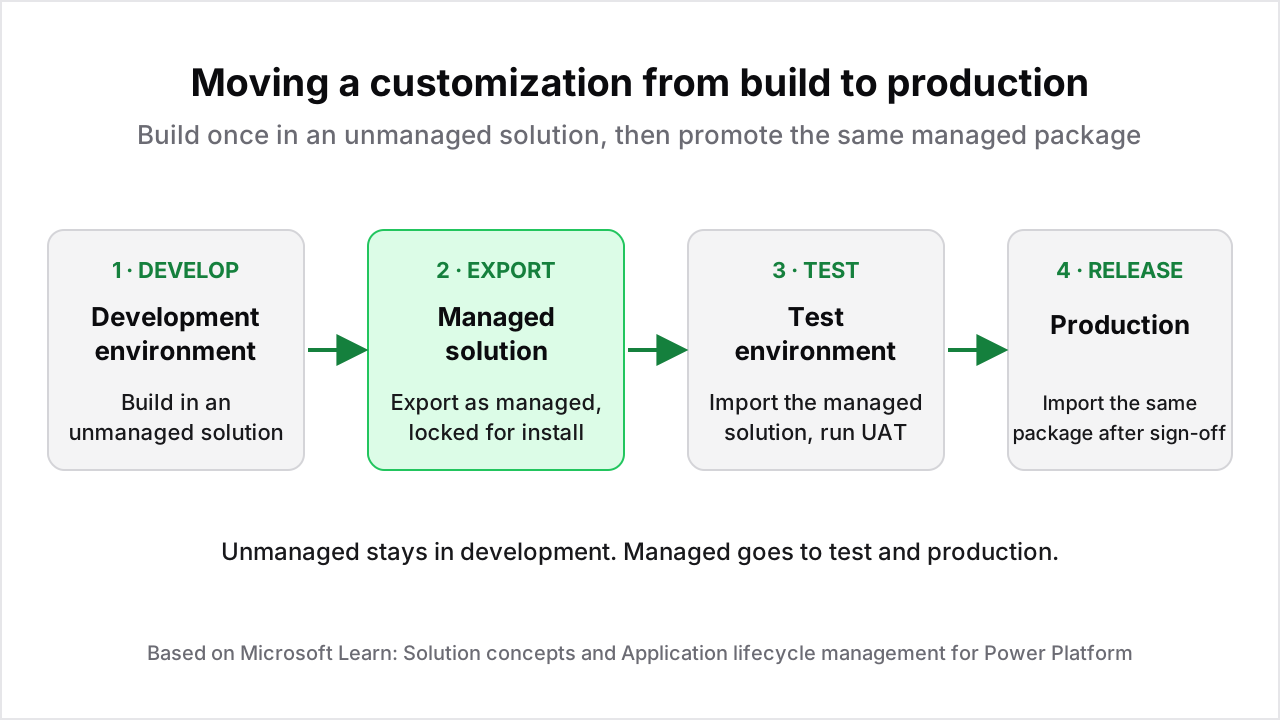
Microsoft defines two solution types. Unmanaged solutions are editable and are used during development, where components can be added, changed, and removed freely. Managed solutions are locked once exported and are what you install into test and production. Microsoft recommends deploying managed solutions to production so environments stay predictable and changes come from a reviewed source.
The pattern I follow is consistent: build in an unmanaged solution in a development environment, export it as managed, and import that managed version into test and then production. This keeps development flexible while protecting production from uncontrolled edits.
Where You Do the Work: The Maker Portal
Most day-to-day work happens in the Power Apps Maker Portal, which has replaced the older “Settings → Customizations” path I learned on. From the portal I open a solution, add or edit a table, and then drop into the form designer, view designer, or app designer as needed. The designers are visual and save work as a draft until it is published.
For deeper control — editing the site map, managing classic processes, or working with the SDK — I use the Solution Explorer and, for repetitive tasks, community tools such as XrmToolBox. Those tools speed up mechanical work, but I treat them as utilities, not as a substitute for keeping every change inside a tracked solution.
Editing Columns and Tables
Most customization starts with data. In Dynamics 365, data lives in tables (historically called entities) and fields (columns). Adding a column is the most common change I make, because it lets the business capture information the out-of-the-box model does not cover.
Choosing the Right Column Type
When I add a column I pick the data type deliberately, because it affects reporting, validation, and integration later. Microsoft documents the available column types — text, choice (option set), number, date and time, lookup, and others — and each has rules about how it stores and sorts data.
A few choices I make often:
- Choice (option set) for fixed lists like status or category, so values stay consistent across records and reports.
- Lookup when a field needs to reference another table, which keeps relationships clean instead of duplicating text.
- Calculated and rollup columns for values that derive from other fields, replacing logic that would otherwise need a plugin.
I avoid free-text columns for anything I later want to report on or filter, because inconsistent typing makes analytics painful. If you are bringing records in from another system, getting the column types right before the migration into Dynamics 365 saves rework later.
Designing Forms That Match How People Work
A form is where users spend their time, so form design has more impact on adoption than almost anything else. I design forms around a single question: what does someone need to see and do on this record to finish their task? Everything else gets moved out of the way.
I group related fields into sections, use tabs to separate secondary detail from the essentials, and put the fields that matter most at the top. Quick view forms let me show related information — an account’s key contacts, for example — without making users open another record. The result is a form that feels shorter, even when the underlying data model is rich.
Business Rules Replace Simple Code
Business rules are among the most useful no-code tools in Dynamics 365. They let me set field values, show or hide fields, make fields required, and validate data based on conditions — all without JavaScript. I use them to guide users through a form so the right data is captured at the right time.
The limit to keep in mind is complexity. Business rules work well for straightforward conditions. When logic needs external data or multiple interdependent steps, I move to Power Automate or a plugin rather than force a business rule to do too much.
Views and Visualizations
Views control how lists of records appear and what users can filter and sort. I customize views so each role sees a focused list rather than every column in the table. A sales team’s “My Open Opportunities” view should show different columns than the view a service manager uses, even when both draw from the same table.
Dashboards pull views and charts together onto a single screen. I build role-based dashboards with a few key metrics each — open opportunities by stage, cases nearing a service-level breach, or activities due today — and avoid crowding every chart onto one layout. A focused dashboard gets used; a crowded one gets ignored.
Automating Processes
Automation is where customization pays back fastest, because it removes repetitive manual steps. Dynamics 365 offers several automation options, and choosing the right one is a recurring decision on every project.
Classic Workflows vs. Power Automate
Classic workflows run inside Dynamics 365 and suit logic that stays within a single table, like updating a related record or sending an internal notification. Power Automate is Microsoft’s newer, more capable automation platform and is what I reach for by default. It connects to a wide range of services, handles approvals, and is where Microsoft concentrates its investment.
My rule of thumb: use Power Automate for anything that crosses systems or involves approvals, and use a classic workflow only for simple, single-table logic that an existing workflow already handles well. Microsoft’s direction is Power Automate, so new automation should generally start there.
Business Process Flows
Business process flows guide users through a defined sequence of stages — qualifying a lead, developing an opportunity, closing a deal. I customize the stages and steps to match how a client’s process actually runs, then control which stages are required. This gives consistency across the team and produces cleaner data for reporting, because everyone moves records through the same stages.
Extending with Code: Plugins, Web Resources, and Custom Pages
When configuration and automation are not enough, Dynamics 365 can be extended with code. This is where customization becomes software development, and it deserves the same discipline — source control, code review, and testing — as any other project.
Plugins are .NET assemblies that run on the server in response to events such as create, update, or delete. I use them for validation or logic that must run transactionally with the record. JavaScript web resources run in the form and change behavior on the client, like formatting a field or filtering a lookup based on another field’s value. Custom pages and Power Apps component framework controls build richer interfaces when the standard form is not enough.
The constraint to respect is performance. Custom code that runs on every save can slow the whole system, and Dynamics 365 enforces service protection limits on API requests to keep the platform stable. I keep plugins small, scope them to the exact fields and events they need, and never put heavy logic in a form script that runs on load.
For teams adding intelligence on top of this, Dynamics 365 Copilot brings AI-assisted drafting and summaries into the apps you have customized.
Building Model-Driven Apps
A model-driven app is the customizable application that sits on top of your tables, forms, views, and dashboards. Microsoft’s model-driven app model generates much of the interface from the data structure, so the work is choosing what to include and how to arrange it, rather than building screens by hand.
In the app designer I select the tables the app needs, add the relevant forms, views, and dashboards, and arrange the site map so navigation follows how people work. I often build more than one app for an organization — a focused app for sales and a different one for service — so each team sees only what it uses. Role-based access, which I cover in the business unit and access guide, controls who can open each app.
Security and Governance During Customization
Customization and security are tightly linked, because every new table, column, and process can change who sees what. Microsoft’s security model for the platform is role-based: security roles define what users can do, and business units scope where they can do it.
I bring security into the design early rather than at the end. When I add a sensitive column, I decide immediately which roles can read and write it. When I create a new table, I assign it to the right security roles before users ever see it. Designing security alongside the data model avoids the common mistake of locking things down after the fact, which is slower and riskier.
Publishing, Testing, and Application Lifecycle Management
Changes are not live until they are published. In the maker portal I publish the components I have edited; for larger sets of changes I publish through the solution itself. Publishing makes changes visible to users, so I time it to avoid disrupting people mid-task.
Testing happens in a separate environment, not in production. My standard flow is to build in development, export a managed solution, import it into a test environment, and run user acceptance testing there. Only after sign-off do I import the same managed solution into production. Microsoft’s guidance on application lifecycle management describes this practice, and following it is what keeps production stable.
Best Practices I Follow on Every Project
A short list of practices that have held up across projects:
- Always work in a solution, never loosely in the default environment, so changes are tracked and portable.
- Prefer configuration over code. Reach for a plugin or script only when configuration cannot meet the requirement.
- Use clear, consistent naming for every component, so the next person to touch the system can find things.
- Document the why, not just the what. A note explaining why a business rule exists prevents someone from deleting it later.
- Test in a non-production environment and publish on a schedule, not during someone’s busy period.
- Keep security in scope from the start, assigning roles and field permissions as you build.
These habits take little extra time during a project and save a great deal of it afterward. The systems that age well are the ones built this way.
Frequently Asked Questions
What is the difference between customization and configuration in Dynamics 365?
Configuration uses the tools Microsoft ships inside Dynamics 365, such as columns, forms, business rules, and security roles, without writing code. Customization adds code that runs on the platform, such as plugins or JavaScript, and carries higher maintenance cost across updates.
Do I need to write code to customize Dynamics 365 CRM?
Usually not. Most needs are met with configuration: columns, forms, views, business rules, and Power Automate flows. Custom code is reserved for validation or logic that configuration and automation cannot handle.
What is a solution in Dynamics 365, and why does it matter?
A solution is a package that bundles your tables, columns, forms, views, processes, and code so they move between environments as a unit. Microsoft recommends building in an unmanaged solution and deploying a managed solution to production so environments stay predictable.
How do I safely deploy customizations to production?
Build in a development environment, export a managed solution, import it into a test environment, and run user acceptance testing there. Only after sign-off, import the same managed solution into production on a scheduled publish.
Does Microsoft support custom code in Dynamics 365?
Yes. Microsoft supports plugins, JavaScript web resources, and Power Apps component framework controls, and enforces service protection limits on API requests to keep the platform stable. Custom code should follow source control, code review, and testing like any software project.
Free tool
Calculate Your Dynamics 365 Migration ROI
See how much you could save with a free, instant ROI estimate. No signup required.