TL;DR
- This free workbook weights your ERP requirements and compares four vendors in one file.
- A vendor that misses a must-have cannot lead, however high its total, so the ranking and the decision stay separate.
An ERP RFP often turns into a stack of answers that nobody can compare. My ERP RFP template is a working workbook. You weight each requirement once, score each vendor, and it shows who leads among the vendors that clear your must-haves.
Download the ERP RFP template. It is a plain .xlsx with no macros and no sign-up. The sample vendors are anonymous letters with illustrative scores, so nothing in the file rates a real product. You can compare Dynamics 365, NetSuite, SAP or anything else.
Video walkthrough
This short captioned walkthrough moves through the three working sheets in order. It starts with a must-have requirement scored below the minimum, then shows each vendor by category, and ends with the leader and the margin on the dashboard. Watch it before you open the file if you want the shape of the scorecard quickly.
Who this scorecard is for
I wrote this for project leads and buying teams who are running an ERP selection and need a fair way to compare answers. It suits a finance or IT lead with a shortlist of vendors, or an adviser who wants one shared scorecard. It helps most after you know what you need and before the demos start.
Good answers need good questions. Microsoft’s guide on defining requirements is a useful place to begin, whichever product you end up choosing. Its fit-to-standard guidance also shows the mindset I want from every vendor: start with the standard process.
If you are still narrowing the field, my comparisons of Business Central vs NetSuite and Dynamics 365 vs SAP may help. Once you choose, my ERP implementation project plan template picks up from there. Our services page explains how we help buying teams.
What is in the workbook
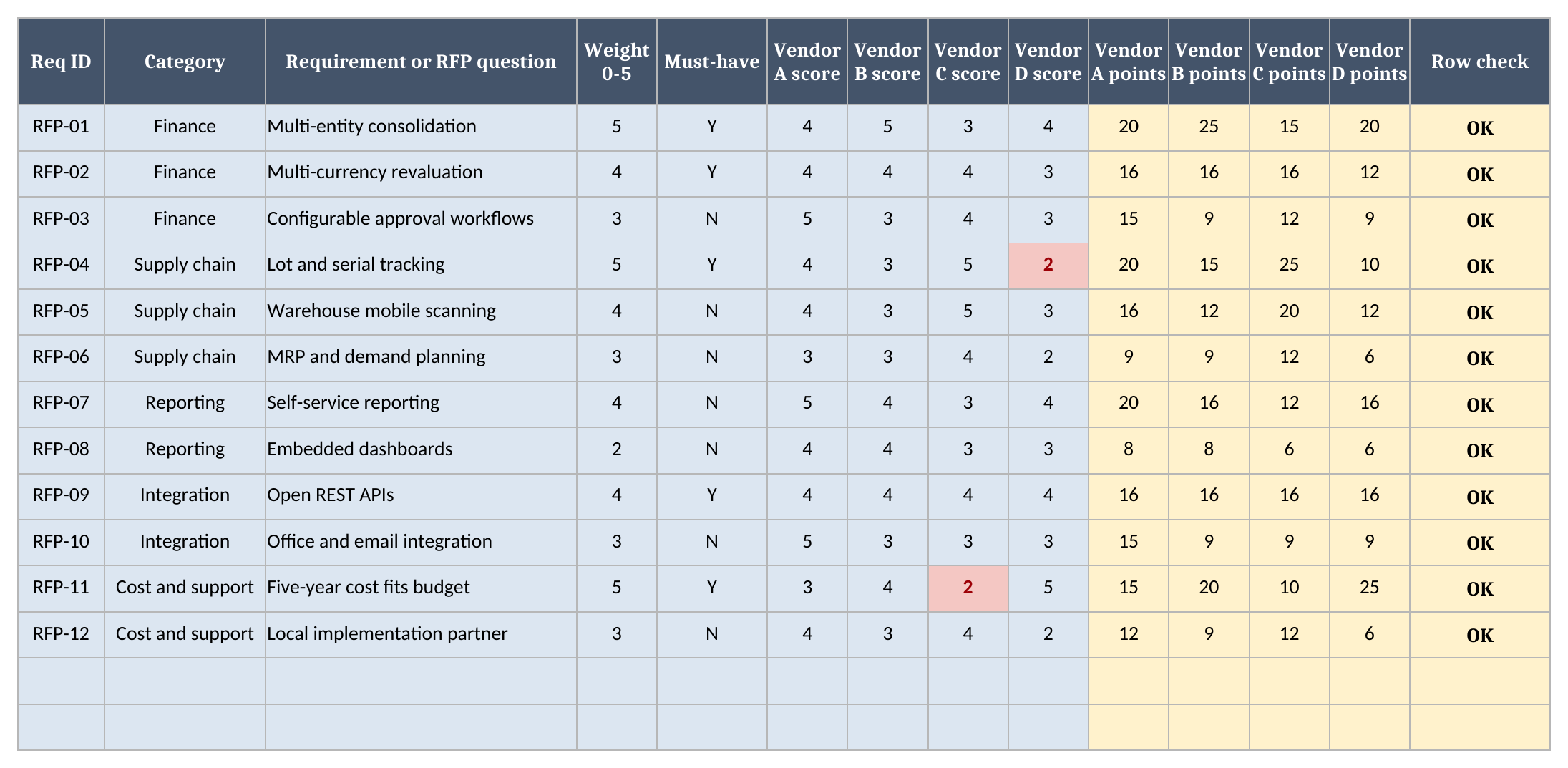
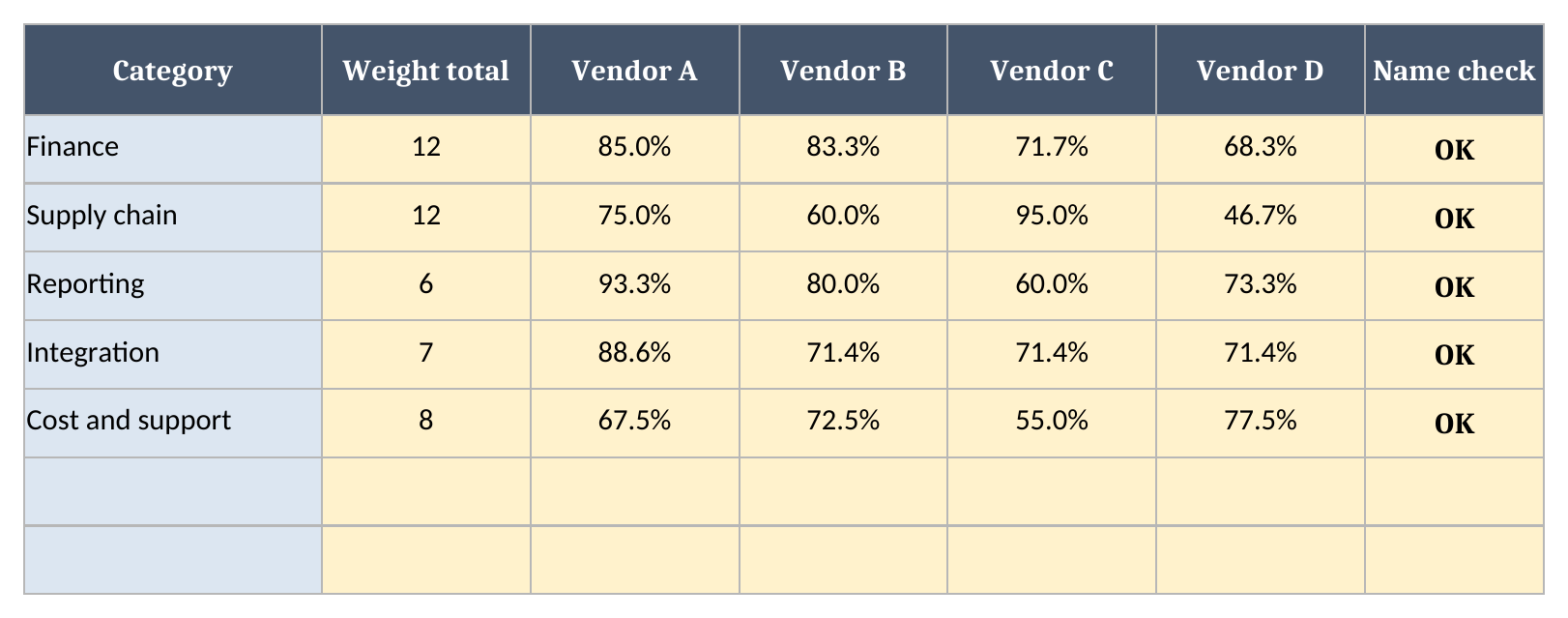
There are four sheets in a fixed order, and each one does a single job. Instructions covers setup and limits. Requirements holds one row per requirement or RFP question, with its weight and its scores. By category shows each vendor by area. Dashboard holds the minimum score, the vendor names and the headline numbers that this page quotes.
- Instructions covers setup and the import route.
- Requirements has one row per requirement.
- By category has one row per category.
- Dashboard has the vendor names and the results.
How to set it up
Setup takes a few steps, and you should do them in order, because Requirements reads the categories and the Dashboard reads both sheets. Start by listing your categories and typing your vendor names, then replace the sample requirements, and finish by scoring each vendor once their written answers and demos are in front of you.
- If Excel opens the file in Protected View, click Enable Editing so the formulas calculate.
- On By category, replace the sample categories with your own.
- On Dashboard, type your vendor names and your minimum must-have score.
- On Requirements, replace the sample rows. Give each one a category, a weight and a must-have flag.
- Score each vendor from 0 to 5 on every row.
Comparing fewer than four vendors
The workbook compares four vendors, and each vendor column needs a name and a score on every row. If you have fewer, give each spare column a placeholder name such as Not used. Then score that placeholder 0 on every row.
A 0 on a must-have is below any minimum above 0, so the placeholder counts as a miss and cannot lead. Its column reads 0.00% in the results. Keep your minimum at 1 or higher, because at 0 a placeholder passes the gate, though it still cannot beat a real vendor. If you leave a spare column blank instead, Data check reads Check data and no leader is named.
When you add a requirement, type it in the next empty row. The calculated columns are already filled down to the last row, so you never need to copy a formula. The same is true on By category, so a new category picks up its scores as soon as you type its name.
Set the weights before you read any answers. If you set them afterwards, people tend to pick the weights that favor the vendor they already like. I keep the two steps apart for that reason.
How the score and the must-have gate work
The weighted score multiplies each weight by each vendor’s score, adds the points and divides by the most a vendor could earn, so every vendor is on the same scale. The gate then sits on top of it. A vendor that scores below your minimum on any must-have counts as a miss, and only vendors with no misses can lead.
A blank score on a must-have counts as a miss too, because an unanswered question should not qualify anyone. Any blank score, a row with no Req ID, a shared ID or a category not on the list reads Check data in the leader until you fix it. If every weight is zero, the scores, ranks and leader all read n/a. A category with no weight reads n/a on its own row, and a zero there would look like a very bad vendor.
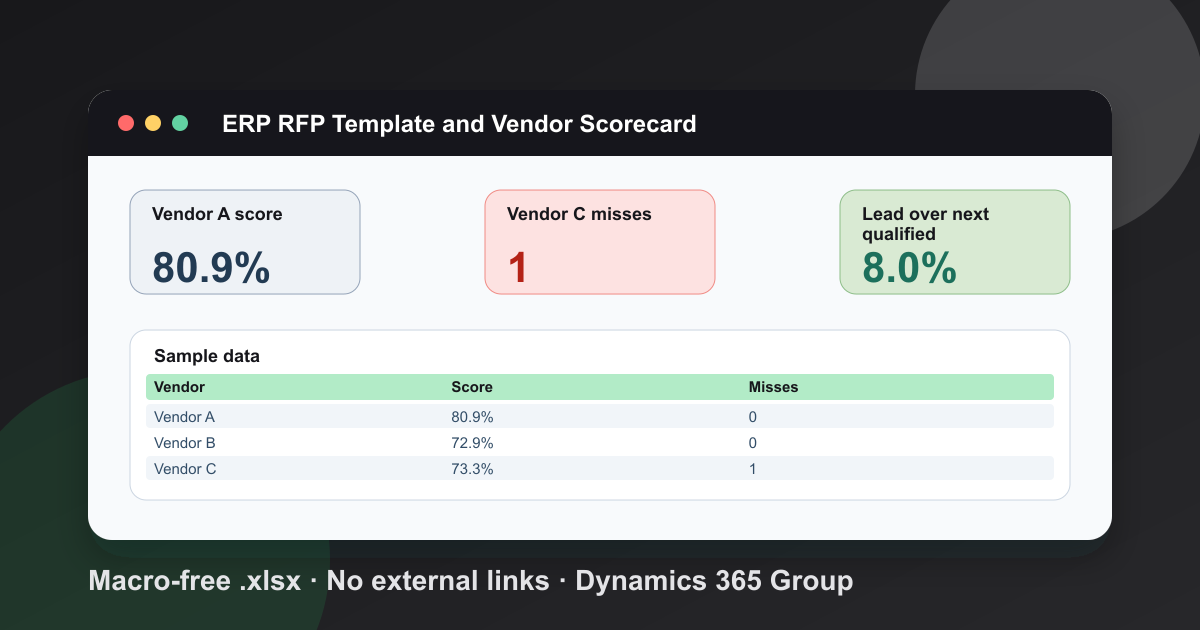
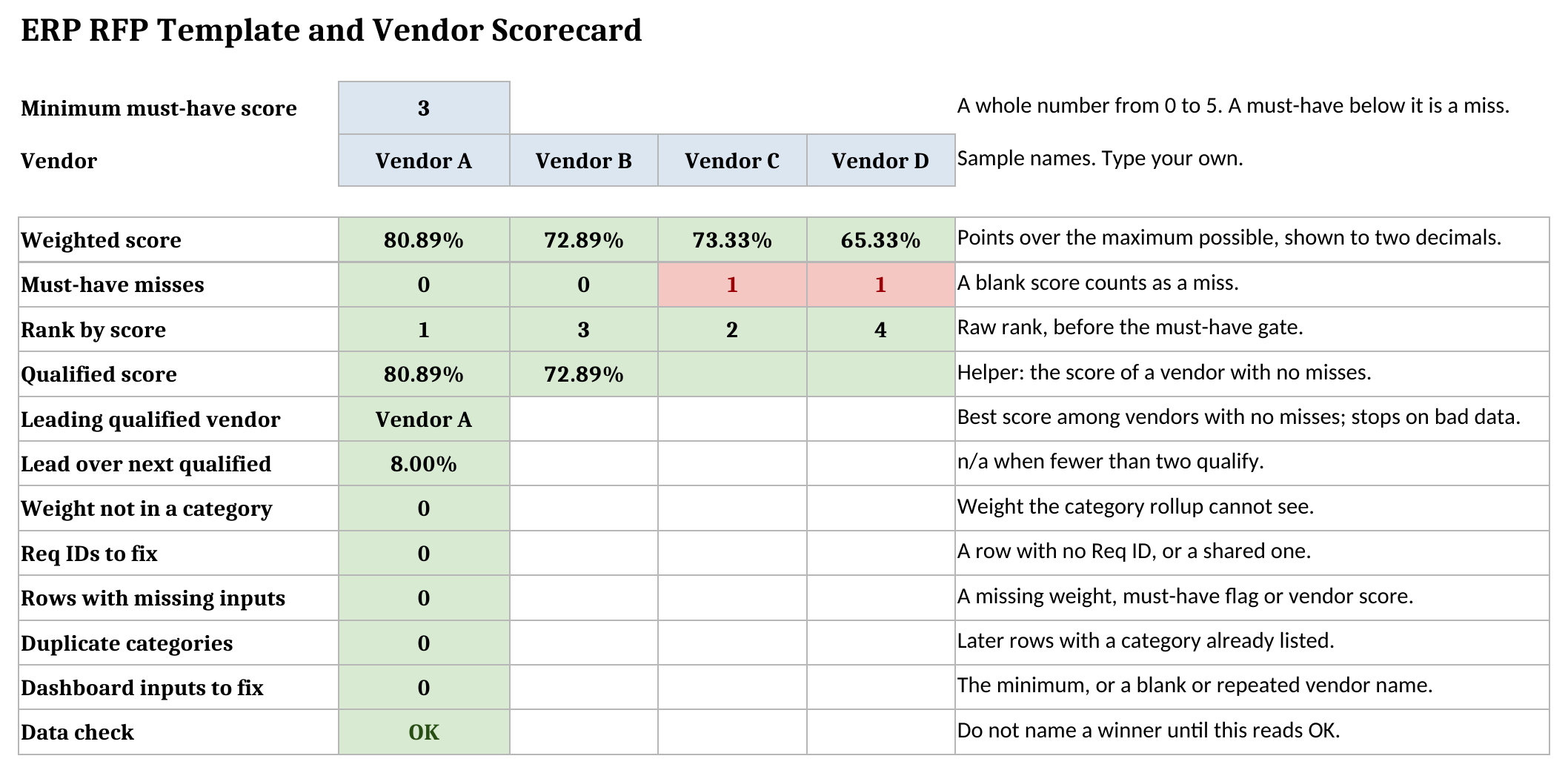
In the sample the minimum is 3. Vendor C ranks 2 on score at 73.3%, with 1 must-have miss, so it cannot lead. That is the point of keeping the rank and the decision separate.
A worked example from the sample
The sample scores four anonymous vendors on a short list of illustrative requirements, and none of the scores describe a real product. Vendor A leads on score and has no must-have misses. The numbers below come straight from the Dashboard sheet, so you can compare them with your own copy after you download the file and open it in Excel.
| Vendor | Weighted score | Must-have misses |
|---|---|---|
| Vendor A | 80.9% | 0 |
| Vendor B | 72.9% | 0 |
| Vendor C | 73.3% | 1 |
| Vendor D | 65.3% | 1 |
Vendor A’s lead over the next qualified vendor is 8.0%. The lead compares only vendors that clear the gate, so a disqualified vendor cannot shrink it or inflate it. If fewer than two vendors qualify, it reads n/a. If two vendors tie at the top, the leader reads Tie and leaves the call to you. Scores show two decimals, and the leader compares them unrounded.
How to use the result fairly
Treat the score as the start of the decision and not the end of it, because a spreadsheet only compares the answers you were given. Check any close result with a scripted demo and a reference call. Keep cost honest too: my guide to Dynamics 365 license costs shows how many pieces a real quote has.
The vendor is only half of the choice. Our guide on how to choose a Microsoft Dynamics 365 partner covers the other half. In my practice I send an RFP to three or four vendors, because more than that adds reading time without adding a real choice.
Using it in Google Sheets
The workbook is a plain .xlsx file with no macros, and Google Sheets can import it. Choose File, then Import, then Upload, pick the file, and choose Insert new sheet(s). After import, change a score and check the results, the dropdowns and the colours before you rely on your copy for a decision.
What the scorecard does not do
This is a spreadsheet, so it has limits worth stating before you rely on it for a decision. It does not rate any product, and it does not know whether an answer is true. You score what you saw. It compares four vendors at a time, and it holds up to 299 requirements and 20 categories, because the formulas stop there. If you have fewer than four vendors, use placeholders as described in the setup steps.
The workbook warns you instead of guessing. Dashboard counts weight not in a category, missing or shared Req IDs, rows with missing inputs, repeated categories and problems with the minimum or the vendor names. The minimum must be a whole number. Do not name a winner until Data check reads OK. More free tools sit on our tools page, and you can download the ERP RFP template when you are ready.
Frequently Asked Questions
What should an ERP RFP include?
Your requirements in business terms, a weight for each, which ones are must-haves, and how you will score the answers. Microsoft guidance on defining requirements is a good start.
How do the weights and the must-have check work together?
Weights set the score. The must-have check is a gate on top: a vendor that scores below your minimum on a must-have cannot lead, however high its total.
Can I compare Dynamics 365, NetSuite and SAP in this scorecard?
Yes. Type their names in place of the sample vendors. The sample letters and scores are illustrative and say nothing about any real product.
Does the template work in Google Sheets?
The file is a plain .xlsx with no macros. In Google Sheets use File > Import > Upload and choose Insert new sheet(s). After import, change a score and check the results, dropdowns and colours.
How many vendors should we send the RFP to?
In my practice, three or four. The workbook compares four at a time, and the setup steps show how to use it with fewer. More than that adds reading time without adding much of a real choice.
Free tool
Calculate Your Dynamics 365 Migration ROI
See how much you could save with a free, instant ROI estimate. No signup required.