TL;DR
- For cloud deployment, follow the product-specific route: Dataverse-backed customer-engagement apps use the Power Platform admin center, Business Central uses its administration center, and Finance and Supply Chain Management use Microsoft’s unified administration experience.
- On-premises routes are also product-specific. Use the exact supported documentation for Customer Engagement, Business Central, or Finance + Operations, then validate that product’s infrastructure, identity, security, servicing, and recovery requirements.
- Use the modern Dynamics 365 App for Outlook. Microsoft retired the legacy Outlook COM add-in for customer-engagement cloud apps.
Choose cloud provisioning or on-premises deployment
Installing Dynamics 365 begins by identifying the product and deployment model, because “Dynamics 365” is a suite rather than one installer. Cloud administration is also product-specific: model-driven customer-engagement apps use Dataverse environments and the Power Platform admin center, Business Central online uses the Business Central administration center, and Finance and Supply Chain Management use Microsoft’s unified finance and operations administration experience. None of those cloud routes uses Dynamics 365 Server media.
On smaller screens, scroll this comparison horizontally to review every installation path.
| Deployment | What “install” means | Authoritative starting point |
|---|---|---|
| Dynamics 365 Sales, Customer Service, Field Service, and other model-driven customer-engagement apps online | Create or select a Dataverse environment, install the entitled Dynamics 365 app in the Power Platform admin center, and configure app and security-role access | Create an environment with Dataverse and manage Dynamics 365 apps |
| Dynamics 365 Business Central online | Create and manage production or sandbox environments in the product-specific Business Central administration center | Business Central administration center |
| Dynamics 365 Finance and Supply Chain Management cloud | Provision an ERP-based environment template or install the Finance and Operations Provisioning App through the unified Power Platform admin center experience | Unified administration for finance and operations apps |
| Dynamics 365 Business Central on-premises | Select a supported topology and use Business Central installation media for the exact version and build | Business Central deployment topologies |
| Dynamics 365 Customer Engagement on-premises | Install supported server roles against a compatible Microsoft infrastructure stack | Install or upgrade Dynamics 365 Server |
| Dynamics 365 Finance + Operations on-premises | Plan the supported customer-datacenter topology, configure the Lifecycle Services project and local agent, then deploy the environment through Lifecycle Services | Set up and deploy Finance + Operations on-premises |
Do not apply a Customer Engagement Server checklist to a cloud application, Business Central, or Finance + Operations. Conversely, do not treat an on-premises deployment as an environment toggle. The product-specific paths have different identity, infrastructure, security, servicing, backup, and cutover responsibilities.
For the wider delivery plan, connect installation to Dynamics 365 data migration, Power Platform and ERP integration, and a documented role-based access model.
Provision a model-driven customer-engagement cloud application
The steps in this section apply to Dataverse-backed, model-driven customer-engagement applications such as Dynamics 365 Sales, Customer Service, and Field Service. They do not replace the Business Central or Finance and Supply Chain Management routes in the table above. This cloud deployment does not require Dynamics 365 Server media; it requires the right tenant, subscription, region, Power Platform environment, Dataverse choices, application entitlement, and administrator roles. Complete those decisions in a non-production environment first, then promote tested configuration and data through the organization’s controlled release process.
Confirm the product, tenant, and licenses
Name the application being deployed and confirm that the intended tenant owns the necessary subscriptions. Assign accountable owners for the business process, environment, security model, data migration, integrations, and production support. Validate each user’s access requirement against current licensing guidance before assigning privileges.
Microsoft offers product-specific evaluation routes rather than one universal trial configuration. For example, Microsoft documents a 30-day Dynamics 365 Sales trial. Use a trial to evaluate features and rehearse configuration, not as an assumed production environment or as evidence that another Dynamics 365 application has identical terms.
Create or select the environment
Use the Power Platform admin center environment guidance to select the environment type, region, security group, language, currency, and Dataverse settings. Microsoft notes that enabling Dynamics 365 apps is a database-provisioning decision that cannot currently be added later when it was omitted, so confirm the design before saving.
Separate development, test, and production responsibilities. A representative non-production environment should hold the configuration, migration rehearsals, integration tests, security-role tests, and user acceptance work needed before release. Record connection owners, application users, capacity assumptions, retention rules, and the promotion method.
Configure access before data
Build security roles and teams around job responsibilities, then test them with representative accounts. Include an administrator, a standard user, an approver or manager, and a user who should be denied access. Test both successful business actions and prohibited actions before loading sensitive production data.
Check application access and licensing separately: a valid subscription does not prove that the correct environment, app, security role, and record permissions are assigned. The Dynamics 365 license-check guide covers the practical review points.
Configure, migrate, and release
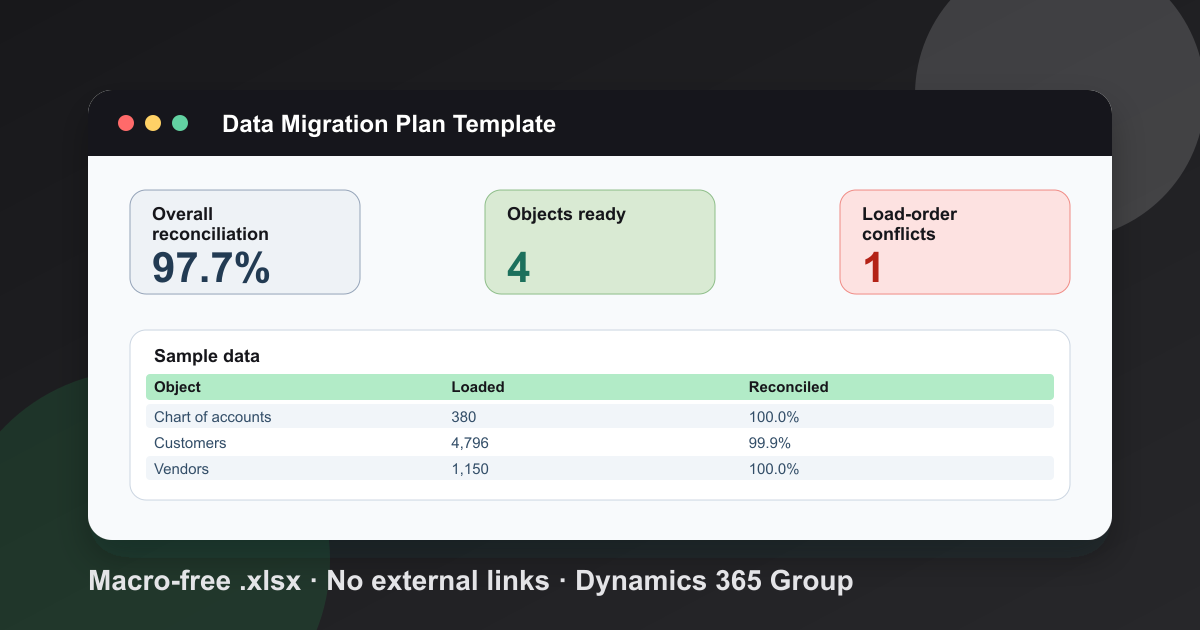
Configure the minimum approved business process first. Load a representative data set, reconcile record counts and relationships, then connect and observe each integration separately. Test actual user journeys, reporting, notifications, automation, error handling, and support escalation rather than accepting a successful sign-in as proof of readiness.
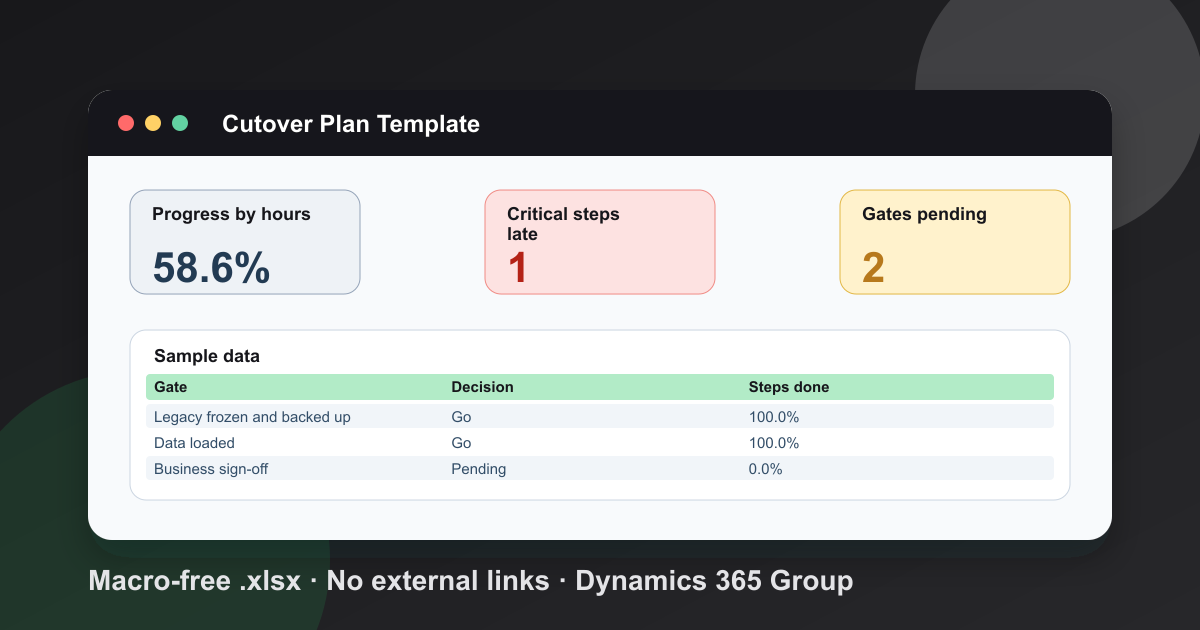
Before production cutover, freeze the migration scope, rehearse the release and rollback sequence, verify environment access, and identify who approves each checkpoint. After release, validate representative records, integration messages, reports, workflows, and user tasks before closing the implementation window.
Deploy Customer Engagement on-premises
Dynamics 365 Customer Engagement on-premises is a server deployment, not the installation path for every Dynamics 365 application. Select the documentation view matching the licensed release and update level, then verify the entire support matrix before obtaining infrastructure or running setup. Requirements can differ between supported releases and updates.
Validate the supported platform
Start with Microsoft’s software requirements for Dynamics 365 Server. For Customer Engagement on-premises version 9.1, Microsoft lists Windows Server 2016, 2019, and 2022 Standard or Datacenter editions, with an additional servicing requirement for Windows Server 2022. Those versions are release-specific facts, not universal Dynamics 365 requirements.
The same Microsoft matrix lists supported SQL Server editions and excludes SQL Server Express. Verify SQL Server, Reporting Services, IIS, Active Directory, browser, network, and certificate requirements against the exact product documentation. Avoid substituting an old blog checklist or a newer infrastructure version that Microsoft has not listed as supported.
Prepare identity and service accounts
Join the deployment server to the intended Active Directory domain and plan the organizational units and security groups created by setup. Microsoft advises against installing Dynamics 365 Server on a domain controller. Define low-privilege service identities and the required SQL, deployment, and reporting permissions before setup rather than granting broad permanent administrator access.
Document name resolution, firewall paths, service principal names, certificates, bindings, and load-balancer behavior where applicable. Microsoft requires claims-based authentication and Internet-Facing Deployment configuration for supported internet access; do not expose an on-premises site directly without meeting those requirements.
Prepare SQL Server, IIS, and reporting
Follow Microsoft’s SQL Server requirements and recommendations. Windows Authentication, running SQL Server services, SQL Server Agent, and Full-Text Search are part of the documented platform. Reporting Services and Dynamics 365 Reporting Extensions also require compatible placement and editions.
Create a deployment runbook covering database location, service identities, certificates, backup, recovery, monitoring, and network dependencies. Treat these as installation inputs. Deferring them until after setup creates a system that may open in a browser but cannot be operated or recovered safely.
Run setup and verify every role
Use Server Setup media and cumulative updates that match the licensed release and documentation view. Record the chosen server roles, deployment configuration, service identities, SQL target, website, ports, and setup logs. In a split-role topology, verify every front-end, back-end, deployment, and reporting dependency before introducing production data.
Install Reporting Extensions only after its prerequisites are satisfied. Test application access, security-role assignment, asynchronous processing, email and mailbox behavior, reports, plug-ins, customizations, integrations, backup, restore, and monitoring with representative accounts and data.
Configure the modern Dynamics 365 App for Outlook
Use Dynamics 365 App for Outlook for supported Outlook integration with customer-engagement applications and model-driven apps. It is separate from provisioning the core Dynamics 365 application, so complete environment and mailbox prerequisites first. Then enable server-side synchronization, test mailboxes, assign the required security role, and deploy the app to eligible users.
Microsoft’s App for Outlook deployment guide documents the supported prerequisites and deployment sequence. Confirm server-side synchronization, approve and test each mailbox, grant the Dynamics 365 App for Outlook User role, and add the app only to users whose configuration shows as eligible.
Do not install the legacy Dynamics 365 for Outlook COM add-in as the cloud solution. Microsoft states that the legacy add-in was retired on October 1, 2020 and became unavailable for customer-engagement cloud apps on December 4, 2020. Microsoft directs those customers to the modern App for Outlook.
Customer Engagement on-premises users have distinct compatibility provisions in that retirement notice, but Microsoft still recommends transitioning to the modern app. For on-premises deployment, also follow Microsoft’s Internet-Facing Deployment and Exchange/OAuth prerequisites rather than copying a cloud-only mailbox checklist.
Validate the deployment before go-live
A Dynamics 365 installation is ready only when representative users can complete approved business processes with correct access, reliable data, observable integrations, usable reporting, and tested recovery. Run the checks in a production-like environment, record expected and actual results, assign defect owners, and repeat failed scenarios after remediation.
- The exact product, deployment model, release, and environment purpose are recorded.
- Tenant ownership, subscriptions, application entitlements, and administrator roles are confirmed.
- Least-privilege security roles pass both allowed-action and denied-action tests.
- Migration totals, relationships, ownership, currencies, and representative records reconcile.
- Integrations expose monitored failures and a documented replay or recovery procedure.
- Reports, automation, email, Outlook integration, and business-critical user journeys pass acceptance tests.
- On-premises infrastructure matches Microsoft’s release-specific support matrix.
- Backup, restore, rollback, monitoring, support, and escalation procedures have been rehearsed.
Avoid common installation mistakes
Common installation risks include choosing the wrong deployment instructions, skipping environment governance, treating access as a licensing-only problem, or stopping when setup completes. Prevent those errors by tying every technical step to the exact product documentation, an accountable owner, a test result, and a recoverable release plan.
Mixing cloud and server instructions
Cloud applications do not use the Customer Engagement SetupServer.exe process. Start from the application’s cloud implementation guidance and Power Platform controls. Use the Windows Server process only for a supported Customer Engagement on-premises release.
Assuming newer infrastructure is automatically supported
Newer Windows Server or SQL Server releases are not automatically valid deployment targets. Select only combinations listed for the exact Customer Engagement release and required service update, then preserve that evidence in the deployment runbook.
Granting broad access to accelerate testing
Over-permissioned test accounts conceal defects in role design. Test minimum permissions for each representative role and include negative tests that prove users cannot reach restricted records or operations.
Treating a completed wizard as acceptance
The installer can finish while integrations, reports, recovery, mailbox processing, or user permissions remain broken. Close the deployment only after end-to-end scenarios pass and operational owners accept the support and rollback plan.
Get implementation support when complexity warrants it
Implementation support is useful when the deployment includes production data, multiple business units or legal entities, complex role design, custom extensions, high-impact integrations, reporting dependencies, or an on-premises topology. The engagement should produce traceable decisions, tested release evidence, support ownership, and a recovery plan rather than merely completing setup screens.
Review Dynamics 365 implementation services when internal teams need help with environment strategy, migration, integration, security, testing, or production cutover. Scope the engagement around named outcomes and acceptance tests so responsibilities remain clear before work begins.
Frequently Asked Questions
Is Dynamics 365 installed like desktop software?
Usually not. Dataverse-backed customer-engagement apps use the Power Platform admin center, Business Central online uses its own administration center, and Finance and Supply Chain Management use Microsoft's unified administration experience. Customer Engagement, Business Central, and Finance + Operations each have separate supported on-premises deployment guidance.
Can a trial environment become the production environment?
Power Platform supports converting eligible trial environments to production when the tenant has the required paid capacity. Treat the trial as an evaluation space and review Microsoft's current conversion requirements before retaining its configuration or data.
Should users install the legacy Dynamics 365 for Outlook add-in?
No for customer-engagement cloud apps. Microsoft retired the legacy Outlook COM add-in and directs customers to the modern Dynamics 365 App for Outlook. Customer Engagement on-premises has separate compatibility guidance, but Microsoft still recommends moving to the modern app.
What should be tested before go-live?
Test sign-in, least-privilege security roles, business-critical processes, migrated data, integrations, reporting, monitoring, and recovery procedures with representative users in a non-production environment. Record the expected result and owner for every test.
Free tool
Calculate Your Dynamics 365 Migration ROI
See how much you could save with a free, instant ROI estimate. No signup required.