Integration Between Dynamics 365 Business Central and WooCommerce for Streamlined Business Operations
Connecting Microsoft Dynamics 365 Business Central with WooCommerce lets you manage products, orders, customers, and inventory in one place. This...
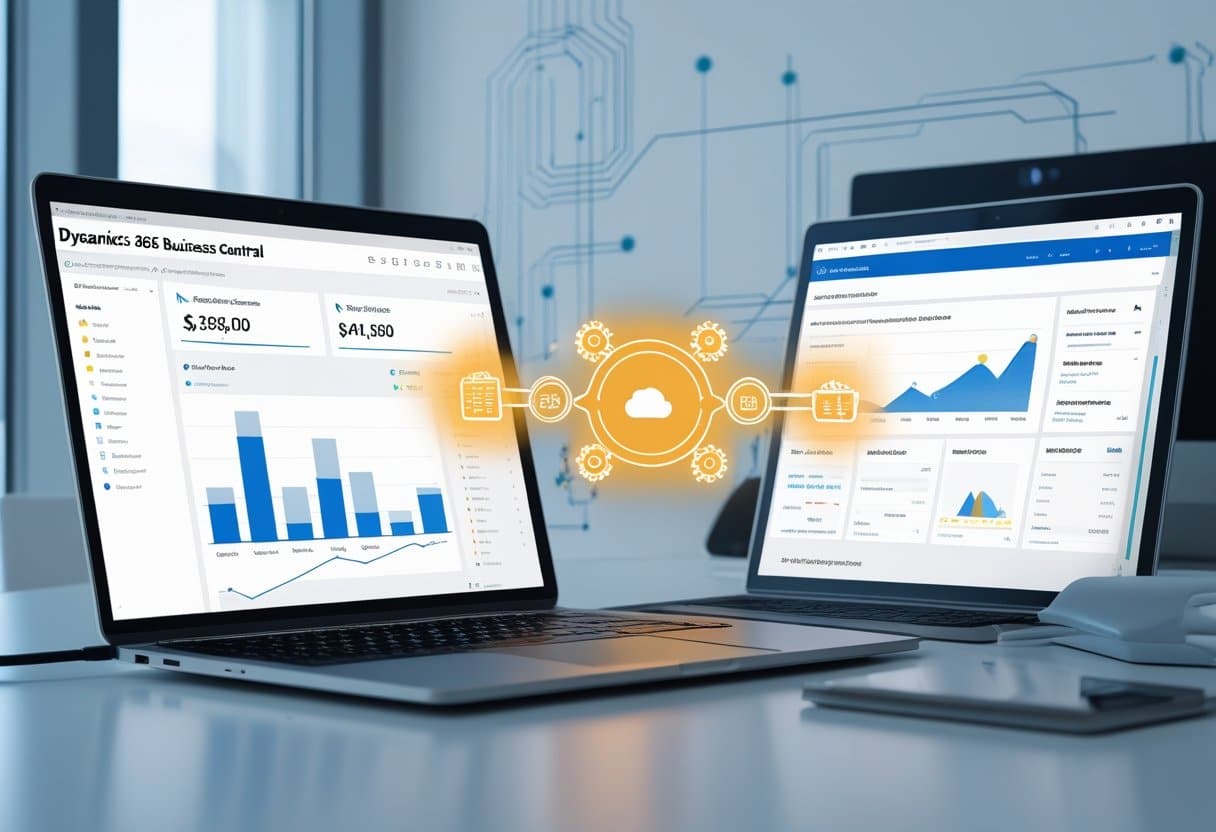
Connecting Microsoft Dynamics 365 Business Central with WooCommerce lets you manage products, orders, customers, and inventory in one place. This integration keeps your online store and back-office data in sync, reducing manual work and improving accuracy.
This connection streamlines operations for e-commerce businesses. You can create or update products in Business Central and have them appear in WooCommerce, track inventory in real time, and process orders without re-entering data. It saves time and keeps information consistent.
By linking these platforms, you gain better control over pricing, customer records, and financial reporting. The integration supports single or multiple stores and helps you make decisions more efficiently.
Key Takeaways
Integration syncs products, orders, and inventory automatically
Improves accuracy and reduces manual data entry
Scales to support single or multiple WooCommerce stores
Understanding the Integration Between Dynamics 365 Business Central and WooCommerce
Connecting Microsoft Dynamics 365 Business Central with WooCommerce allows product, order, and customer data flows automatically between both systems. This reduces manual work and gives teams a single, trusted view of their e‑commerce and financial operations.
Key Concepts and Terminology
Integration uses a few core terms. Two‑way synchronization means data updates in either system appear in the other. For example, a price change in Business Central updates in WooCommerce, and a new online order appears in Business Central.
Entities are the data objects synced, such as products, customers, orders, and inventory levels. Each entity has mapping rules so fields match between the two systems.
APIs are secure communication channels that make the connection possible. WooCommerce uses REST APIs, while Business Central uses OData and API endpoints. These enable real-time or scheduled data exchange.
Middleware is a third‑party tool that manages data flow, but some solutions, like the WooCommerce Connector for Business Central, run entirely inside Business Central, which makes maintenance easier.
Overview of Integration Capabilities
A well‑configured integration can sync a wide range of data. Product creation in Business Central can automatically create new items in WooCommerce with descriptions, prices, and stock levels.
Orders placed in WooCommerce can post directly to Business Central, including customer details, payment status, and shipping information. This allows accounting and fulfillment teams to work from the same data as the online store.
Inventory can sync in near real time. If Business Central shows 5 units available, WooCommerce updates to prevent overselling. Solutions like the Tinx WooCommerce Connector make this process quick to deploy.
Some integrations support multiple WooCommerce stores connected to one Business Central tenant. This helps businesses running separate B2B and retail sites keep a unified back‑office system.
Business Value of Integration
The main value is in eliminating duplicate data entry. Without integration, staff might enter the same order in WooCommerce and again in Business Central, which wastes time and increases the risk of errors.
Integration improves data accuracy. Inventory counts, product details, and customer information stay consistent across both systems, helping avoid customer service issues.
From a financial perspective, having all e‑commerce transactions flow into Business Central allows for better reporting and faster month‑end close. It also supports more accurate demand planning since sales data is always up to date.
Integration scales with your business. If order volume doubles, the automated workflows handle the load without adding extra staff.
Core Integration Features and Supported Data Flows
With Dynamics 365 Business Central connected to WooCommerce, data moves in both directions. Sales, finance, and fulfillment stay in sync without duplicate entry.
Product and Item Synchronization
When WooCommerce connects to Dynamics 365 Business Central, product data flows both ways. This includes item names, descriptions, prices, stock levels, and SKU codes.
If a new product is created in Business Central, it can be automatically published to WooCommerce with full details. Changes in WooCommerce—such as updating images or descriptions—can sync back to Business Central.
Inventory quantity updates keep stock levels in WooCommerce matching real-time availability in Business Central. This prevents overselling and reduces manual inventory checks.
DirectionData TypeExampleBC → WCNew product“SKU-101” with price and descriptionWC → BCUpdated product imageNew product photo for SKU-101BC ↔ WCStock levelsQuantity changes after sales or restocks
Order and Invoice Management
WooCommerce orders can flow directly into Dynamics 365 Business Central as sales orders or invoices. Order details—such as products, quantities, discounts, and taxes—are mapped to match the financial structure in Business Central.
Once the order is in Business Central, you can trigger fulfillment workflows, update shipping status, and post invoices. This ensures finance teams have accurate records without retyping order data.
Status updates can also sync back to WooCommerce. For example, when an order is shipped in Business Central, WooCommerce can automatically show the updated status to the customer.
This two-way connection helps teams work from the same accurate order data.
Customer Data Integration
Customer records are a key part of this integration. When a new customer places an order in WooCommerce, the system can create or update the customer profile in Dynamics 365 Business Central.
This includes name, billing address, shipping address, email, and phone number. If the customer already exists in Business Central, the system updates their details instead of creating duplicates.
Syncs from Business Central to WooCommerce ensure both systems remain aligned when customer data changes.
Keeping customer data consistent improves reporting, enables targeted marketing, and ensures orders are processed with correct details.
For more on how product data moves between systems, see Connecting WooCommerce with Dynamics 365 Business Central.
Product Catalog and Inventory Synchronization
Keeping product data consistent between Dynamics 365 Business Central and WooCommerce means customers always see accurate details and stock levels. This prevents overselling and ensures the online catalog matches ERP records.
Publishing and Unpublishing Items
Publishing an item from Business Central to WooCommerce sends its name, description, price, and images directly from the ERP. This removes the need to manually re-enter data in the store.
You can publish all items or only selected ones. If you unpublish an item, it is removed from the WooCommerce storefront but remains in Business Central.
For example, using the item synchronization process, you can ensure only approved products are visible online.
Tracking product status changes helps avoid customer confusion and prevent orders for unavailable stock.
Managing Item Attributes and Categories
Item attributes like size, color, and material can be mapped from Business Central to WooCommerce. This lets customers filter and find products easily.
Categories in WooCommerce can link to product groups in Business Central, so the online store’s navigation matches the ERP’s product structure. This makes it easier to update large product ranges.
When you update an attribute in Business Central, the change flows through to WooCommerce automatically. This prevents mismatched product details.
Regularly reviewing category assignments helps customers find what they need and keeps the store organized.
Inventory Updates and Stock Accuracy
Real-time or scheduled inventory sync between Business Central and WooCommerce keeps stock counts aligned. This prevents overselling and avoids customer service issues.
When a sale happens in WooCommerce, the order reduces inventory in Business Central immediately. If you adjust stock in Business Central, the change updates in WooCommerce without delay.
A connector with two-way synchronization ensures that stock changes, returns, and restocks are reflected in both systems. Solutions like the WooCommerce connector capabilities support this level of accuracy.
Setting low-stock alerts in Business Central helps you reorder before items run out. This keeps products available and avoids lost sales.
Order Processing and Fulfillment Automation
Order management becomes more efficient by reducing manual steps and keeping data accurate between systems. Connecting WooCommerce with Dynamics 365 Business Central helps businesses process orders faster, keep customers informed, and handle returns with less effort.
WooCommerce Order Import to Business Central
When a customer places an order in WooCommerce, the integration can automatically import the order into Business Central. This removes manual entry and reduces errors.
Each imported order includes:
Data SyncedExamplesCustomer InfoName, email, shipping addressOrder LinesProduct SKU, quantity, pricePayment StatusPaid, pending, failed
You can set up real-time or scheduled syncs, depending on order volume. Real-time syncing lets warehouse staff start picking and packing immediately.
Tools like the WooCommerce Connector for Business Central help map product SKUs between platforms so inventory stays aligned. This is especially important for businesses with high turnover products.
Automated Invoicing and Status Updates
After an order is confirmed in Business Central, I automate the creation of sales invoices. This keeps accounting records up to date without manual work.
I set up status updates so customers get notifications when:
Their order is confirmed
The invoice is issued
The shipment is dispatched
Using Business Central order processing automation, these updates are triggered directly from the ERP. This improves communication and reduces support requests.
For B2B clients, I often attach PDF invoices to confirmation emails for easier record-keeping.
Returns and Refunds Handling
Efficient returns are important. I create workflows so a return request in WooCommerce triggers a return order in Business Central.
This includes:
Verifying the original order and payment method
Updating inventory when the product is received
Issuing the refund through the correct payment gateway
With integrations like WooCommerce and Business Central return management, stock levels and financial records stay accurate.
I suggest using a standard return reason list in both systems for easier reporting and trend analysis. This helps spot product issues or recurring customer concerns.
Customer and Pricing Data Management
I make sure customer profiles, order history, and pricing rules are accurate in both WooCommerce and Dynamics 365 Business Central. This keeps sales, accounting, and fulfillment teams working with the same information.
Customer Information Synchronization
When connecting WooCommerce with Dynamics 365 Business Central, I set up two-way synchronization for customer records. Updates in one system appear in the other automatically.
I keep fields like name, email, billing address, shipping address, and phone number aligned. This avoids mismatched records and duplicates.
For example, when a new customer registers on WooCommerce, their profile is created in Dynamics 365 Business Central. If I update contact details in Business Central, WooCommerce receives the change automatically.
I also set up rules to handle account merges when duplicates are found. This keeps CRM data clean and reporting accurate. Learn more about data flows from WooCommerce to Dynamics 365 Business Central integration.
Tiered and Promotional Pricing Strategies
I use Dynamics 365 Business Central to manage tiered pricing for wholesale, retail, and special customer groups. WooCommerce then displays the correct price based on the user’s profile.
Promotions are easier to control when I define discount rules centrally in Business Central, such as:
Pricing TypeExample Use CaseSync to WooCommerceTiered PricingWholesale vs. retail ratesYesTime-Limited SalesSeasonal or clearance discountsYesCustomer-SpecificContract-based negotiated pricingYes
Syncing these rules avoids maintaining separate pricing tables in WooCommerce and reduces pricing errors. Tools like Tinx WooCommerce integration help streamline this process.
Managing Guest Checkouts
Many WooCommerce stores allow guest checkout, but I ensure these orders are captured in Dynamics 365 Business Central with accurate customer data.
If the buyer does not create an account, I assign the order to a generic guest customer record in Business Central. This keeps accounting and reporting consistent.
I also set up workflows to encourage guest buyers to register after purchase, helping build a better customer database for marketing and loyalty programs.
By capturing even guest orders, I keep sales and customer history complete. This supports accurate inventory and revenue tracking. Solutions like multi-channel ecommerce connectors automate this process.
Technical Architecture and Integration Methods
When I integrate Microsoft Dynamics 365 Business Central with WooCommerce, I focus on how data moves, how systems communicate, and which tools ensure accuracy. The right method depends on business needs, data volume, and automation level.
APIs and Web Services
I often use the WooCommerce REST API and the Business Central API for direct, secure access to system data. These APIs let me push and pull orders, products, and inventory automatically.
With the WooCommerce API, I use keys and send JSON payloads to create or update records. On the Business Central side, the integration overview explains how OData and SOAP endpoints expose ERP data.
A typical workflow:
StepActionSystem1Fetch new WooCommerce ordersWooCommerce API2Create sales ordersBusiness Central API3Update stock levelsBusiness Central API → WooCommerce API
This method is flexible but requires development skills and good error handling.
Connector Solutions and Middleware
For faster setup, I use ready-made connectors or iPaaS middleware. Tools like the WooCommerce to D365 Business Central connector handle authentication, mapping, and scheduling without much coding.
These solutions sync orders, customers, and inventory automatically, often supporting two-way data flow.
I prefer middleware when:
Multiple systems need integration
Data transformation rules are complex
Non-technical users need to monitor workflows
The trade-off is less customization, but maintenance is easier and setup is faster.
Custom Extensions and Modifications
Sometimes I build AL language extensions in Business Central for custom logic or endpoints. This helps with unique pricing rules, custom fields, or special workflows.
For WooCommerce, I create PHP plugins to extend the API or hook into order and product events. The connecting WooCommerce with Business Central method is useful for syncing non-standard data.
Custom development takes more time but ensures the integration meets exact business needs.
Best Practices for Data Accuracy and Security
I keep records consistent across systems, reduce risks from incorrect data, and protect sensitive information. This involves using the right sync methods, monitoring for errors, and applying strong security controls.
Ensuring Reliable Synchronization
I make sure WooCommerce and Dynamics 365 Business Central share data through a stable connection. I often use Dataverse integration for structured, bidirectional sync.
I set rules for which system is the master for data types like inventory or pricing to prevent conflicts.
Regular automated syncs and comparison reports help verify accuracy. These reports flag mismatches in product data, customer details, or order statuses for quick correction.
I log every sync event to trace the source of any data issues.
Checklist for reliable sync:
Define master data ownership
Automate sync schedules
Run comparison reports weekly
Keep detailed sync logs
Error Handling and Monitoring
I set up real-time monitoring tools to alert me when a sync job fails or data is in the wrong format.
Validation rules stop bad data from entering the ERP. For example, an order cannot sync if SKU data is missing or tax codes are invalid.
Dashboards help track error trends. If a field fails often, I review the mapping or the source process.
When I fix an error, I document the cause and solution for faster troubleshooting next time.
Key monitoring actions:
Enable real-time error alerts
Apply strict data validation rules
Track recurring issues with dashboards
Keep a resolution log
Data Security Considerations
Protecting sensitive data is vital. In Business Central, I use role-based security so users only access what they need.
I always use encrypted connections for data transfer between WooCommerce and Business Central. This protects customer and payment details.
Multi-factor authentication adds security for admin accounts. I review user permissions quarterly to remove unnecessary access.
For integrations that store temporary data, I set automatic deletion schedules to reduce risk.
Security measures I apply:
Role-based access control
Encrypted data transfer (SSL/TLS)
Multi-factor authentication for admins
Regular permission reviews
Timely deletion of temporary sync data
Scaling Integration for Multiple WooCommerce Stores
When integrating Dynamics 365 Business Central with multiple WooCommerce stores, I keep each store’s data accurate, synchronized, and easy to manage. Clear configuration and defined processes prevent conflicts and reduce errors in orders, inventory, and financial records.
Managing Multiple Store Connections
Each WooCommerce store may serve a different region, product line, or customer type. I ensure the integration can handle separate product catalogs, pricing rules, and tax settings for each store.
Connectors like the WooCommerce Connector for Business Central let me link multiple stores to one Business Central environment. This enables tracking sales and inventory across all stores in one place.
For smooth operation, I recommend:
Assigning unique identifiers for each store’s products and customers
Scheduling sync times to avoid data conflicts
Monitoring error logs daily
This setup allows consolidated reporting while keeping store-specific data separate.
Configuration and Customization Options
Every WooCommerce store has its own operational needs, so I configure each integration profile separately. In Business Central, I map fields so product descriptions, categories, and SKUs match each store’s structure. This prevents mismatches and order delays.
When needed, I customize workflows for store-specific rules. For example, one store might need same-day shipping updates, while another only needs updates twice a day. Integration tools like Folio3’s WooCommerce Connector automate these differences.
I also set inventory buffers for high-volume stores to avoid overselling. By adjusting sync frequency and data mapping for each store, I ensure efficient operations with a shared ERP backbone.
Frequently Asked Questions
I make sure data moves correctly between Dynamics 365 Business Central and WooCommerce. This includes products, inventory, customers, orders, payments, and taxes. The goal is to keep both systems aligned and reduce manual work.
What are the essential considerations when synchronizing product data between Business Central and WooCommerce?
I check that product names, SKUs, descriptions, and pricing match in both systems. Using the same units of measure and categories helps prevent mistakes. I also make sure images and attributes are mapped so updates in Business Central show up in WooCommerce.
How can I ensure real-time inventory updates between Dynamics 365 Business Central and my WooCommerce store?
I use automated sync tools that update inventory from Business Central to WooCommerce as soon as stock changes. Solutions like the WooCommerce Connector for Business Central help keep both systems in sync and prevent overselling.
What is the best practice for managing customer data integration from WooCommerce into Dynamics 365 Business Central?
I map customer records from WooCommerce to the right fields in Business Central, including names, contact details, and billing addresses. I set rules to avoid duplicate records and keep a single customer profile in both systems.
Could you elaborate on the process of automating order fulfillment from WooCommerce to Dynamics 365 Business Central?
I set up the integration so new WooCommerce orders go straight into Business Central’s sales order module. This lets me handle picking, packing, and shipping without re-entering data. Tools like the Tinx WooCommerce connector help make this process easy.
What are the common challenges faced during the integration of payment and invoicing systems between WooCommerce and Business Central?
Sometimes payment statuses in WooCommerce do not match invoice records in Business Central. Payment gateway differences can cause delays. I fix this by mapping payment methods correctly and testing the workflow before going live.
How does the integration between Business Central and WooCommerce handle tax calculations and compliance?
I set up tax settings in both systems to follow local and international rules. Business Central applies tax groups and rates, and WooCommerce calculates taxes at checkout. The integration ensures tax details are passed accurately for correct reporting.


