How to Add Add-Ins in Office 365: Boost Productivity with These Essential Extensions
Office 365 add-ins are powerful tools that can boost your productivity and streamline your workflow. Adding add-ins to Office 365 is a straightforward...
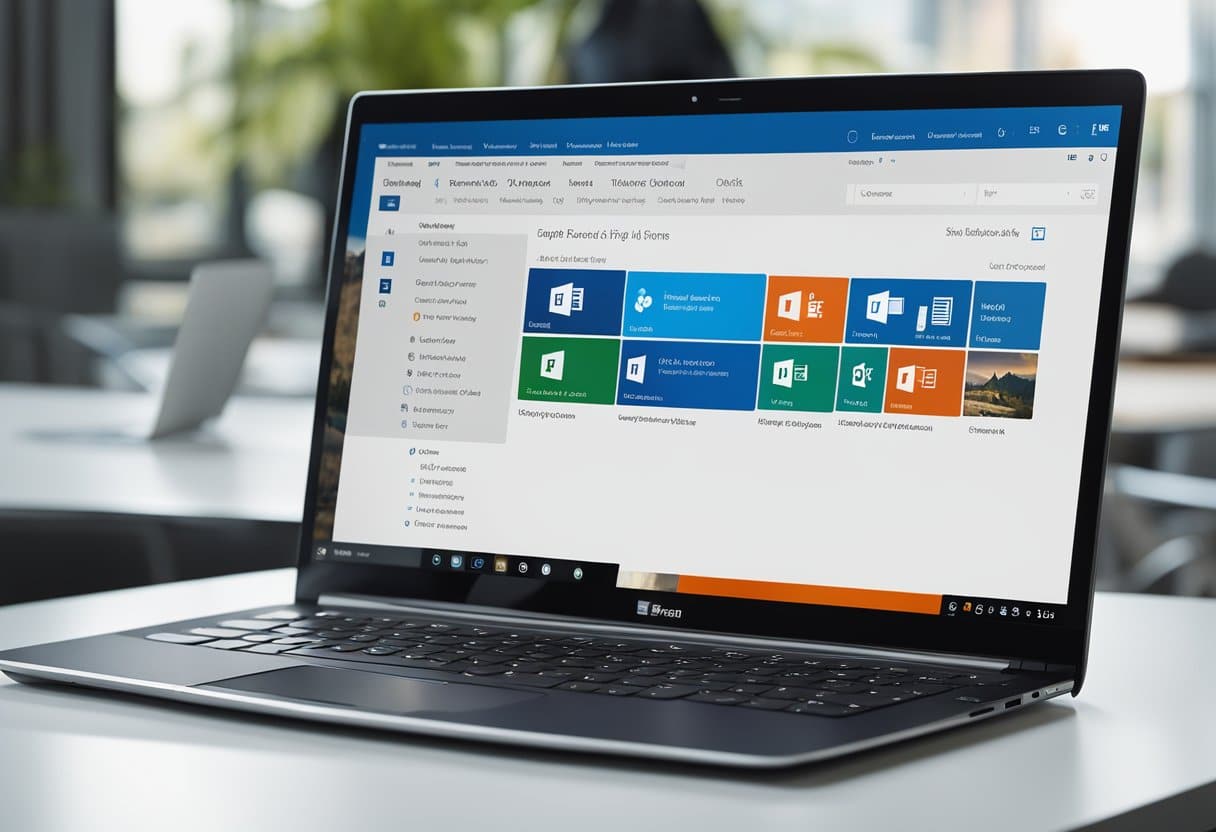
Office 365 add-ins are powerful tools that can boost your productivity and streamline your workflow. Adding add-ins to Office 365 is a straightforward process that can be done through the Office Store or your organization’s admin center.
As a Dynamics 365 expert, I’ve seen firsthand how the right add-ins can transform daily tasks. Whether you’re looking to enhance your email management in Outlook or supercharge your spreadsheet capabilities in Excel, there’s likely an add-in that fits your needs. The best part? You can access add-ins right from your Office applications, making them easy to use once installed.
For those in larger organizations, your IT team might deploy add-ins centrally to ensure everyone has access to the tools they need. This approach simplifies management and keeps everyone on the same page with the latest productivity boosters.
Understanding Add-Ins in Microsoft 365
Add-ins are a powerful way to enhance and customize Microsoft 365 applications. They bring new features and functionality to the familiar Office interface, helping users work more efficiently.
What Are Office Add-Ins?
Office add-ins are web applications that integrate seamlessly with Microsoft 365 programs. I’ve seen firsthand how they can transform the way people work. These add-ins run inside Office applications like Word, Excel, and PowerPoint.
They’re not the same as the older COM or VSTO add-ins. Instead, they use web technologies like HTML, CSS, and JavaScript. This makes them more versatile and easier to develop.
Add-ins can do many things. They might pull in data from external sources, automate tasks, or add new buttons to the ribbon. I’ve helped clients use add-ins to connect their CRM data directly to Office documents, saving hours of manual work.
Benefits of Using Add-Ins
In my experience, add-ins can be game-changers for productivity. They allow users to access powerful tools without leaving their familiar Office environment. This seamless integration is a huge time-saver.
Add-ins are also great for customization. I’ve worked with companies to create add-ins tailored to their specific needs. This might include industry-specific templates or connections to proprietary databases.
Security is another benefit. Microsoft carefully vets add-ins in AppSource, their official store. This gives users peace of mind when installing new tools.
Lastly, add-ins work across platforms. Whether you’re using Office on Windows, Mac, or online, your add-ins will be there. This consistency is crucial for businesses with diverse IT environments.
Getting Started with Add-Ins
I’ve found that adding Office 365 add-ins can really boost productivity. They’re easy to access and set up once you know where to look. Let me walk you through the process.
Accessing the Office Store
To get started, I usually open any Office 365 app like Word or Excel. Then I click on “Insert” in the top menu and select “Get Add-ins” or “Office Add-ins”. This takes me right to the Office Store.
The store has tons of add-ins for different tasks. I can browse categories or search for something specific. When I find an add-in I like, I just click “Add” and follow the prompts to install it.
Some add-ins are free, while others have a cost. I always check the details before adding anything new.
Using My Add-Ins
Once I’ve added some add-ins, I can manage them in the “My Add-ins” section. To get there, I go to “Insert” > “My Add-ins” in any Office app.
Here, I see all my installed add-ins. I can easily turn them on or off, remove ones I don’t use, or update them if needed.
To use an add-in, I just click on it in the “My Add-ins” list. It’ll open right in my document or spreadsheet. Some add-ins have their own ribbon tab with extra features.
I find it helpful to organize my add-ins by pinning my favorites for quick access. This saves me time when working on projects.
Installation and Management
Installing and managing add-ins in Office 365 is straightforward. I’ll guide you through the process of adding new tools and keeping them organized.
How to Install Office Add-Ins
To get started with new add-ins, I recommend checking out the Office Store. It’s packed with useful tools for Excel, PowerPoint, and Word.
Here’s a quick step-by-step:
Open your Office app
Click on “Insert” tab
Select “Get Add-ins”
Browse or search for the add-in you want
Click “Add” to install
For Outlook users, the process is a bit different. You’ll need to:
Go to the app bar on the left
Click “More Apps” then “Add apps”
Some organizations have custom add-ins. In this case, your IT admin will deploy them centrally. You’ll see these appear automatically in your Office apps.
Managing Installed Add-Ins
Once you’ve got your add-ins installed, keeping them organized is key. In most Office apps, you can manage your add-ins right from the “Insert” tab.
To turn add-ins on or off:
Go to “My Add-ins”
Find the add-in you want to manage
Toggle the switch next to it
For more advanced management, I often use the Microsoft 365 admin center. Here, you can:
Edit add-in settings
Remove add-ins you no longer need
Control who has access to specific add-ins
Remember, keeping your add-ins up-to-date is crucial for security and performance. Most update automatically, but it’s worth checking regularly.
Using Add-Ins Across Office Applications
I’ve found that add-ins can significantly boost productivity across various Office applications. They offer specialized features and integrations that enhance the core functionality of Outlook, Excel, Word, and PowerPoint.
Add-Ins for Outlook
In my experience, Outlook add-ins are game-changers for email management. I often use the Boomerang add-in to schedule emails and set reminders for follow-ups. Another favorite is DocuSign, which lets me sign documents right from my inbox.
To install an Outlook add-in:
Open Outlook
Click “Get Add-ins” on the Home ribbon
Browse or search for the desired add-in
Click “Add” to install
I’ve noticed that some add-ins, like Salesforce, sync data between Outlook and other platforms. This integration saves me tons of time on data entry.
Add-Ins for Excel and Word
Excel and Word add-ins have revolutionized how I work with data and documents. In Excel, I rely on the Analysis ToolPak for advanced statistical analysis. For Word, I find Grammarly invaluable for polishing my writing.
To access add-ins in these applications:
Go to the Insert tab
Click “Get Add-ins”
Choose from the Office Store or enter a URL for a custom add-in
I’ve had great success using Power Map in Excel for visualizing geographical data. In Word, the Citation Manager add-in has been a lifesaver for academic writing.
Add-Ins for PowerPoint
PowerPoint add-ins have helped me create more engaging presentations. My go-to is Office Timeline, which allows me to create professional timelines and Gantt charts with ease.
To install a PowerPoint add-in:
Open PowerPoint
Select “Get Add-ins” from the Insert tab
Browse the store or search for specific add-ins
Click “Add” to install
I’ve found that the Pexels add-in is fantastic for accessing high-quality, royalty-free images directly within PowerPoint. The QR Code Generator add-in has also been useful for creating interactive presentations.
Deploying Add-Ins Organization-Wide
I’ve found several effective methods for deploying Office add-ins across an entire organization. These approaches streamline the process and ensure all users have access to the tools they need.
Centralized Deployment
Centralized Deployment is my go-to method for rolling out add-ins company-wide. It’s a powerful feature in the Microsoft 365 admin center that lets me deploy add-ins to users and groups with ease.
Here’s what I love about it:
No client configuration needed
Add-ins appear automatically in users’ Office apps
I can manage everything from one place
To use Centralized Deployment, I first check if my organization meets the requirements. Then I follow these steps:
Go to the admin center
Select “Integrated apps”
Choose “Add-ins”
Click “Deploy Add-in”
Select the add-in and assign users
It’s that simple! I can also turn add-ins on or off, edit settings, and control access as needed.
SharePoint App Catalog
When Centralized Deployment isn’t an option, I turn to the SharePoint App Catalog. It’s a special site collection in SharePoint Online where I can upload and manage custom add-ins.
To set it up, I:
Create the App Catalog site in SharePoint admin center
Upload my add-in package
Deploy it to specific sites or make it available org-wide
This method works well for both store and custom add-ins. It gives me fine-grained control over distribution and versioning.
Integrated Apps Feature
The Integrated Apps feature in Microsoft 365 is my newest tool for add-in deployment. It’s designed to simplify the process of rolling out both internal and external add-ins.
Key benefits I’ve found:
Unified management of all types of apps
Easy discovery for users
Streamlined approval workflows
To use Integrated Apps, I go to the admin center and select “Integrated apps” from the menu. From there, I can add new apps, manage existing ones, and set up policies to control their use.
I’ve found this feature particularly useful for larger organizations with diverse app needs. It helps me keep everything organized and accessible in one place.
Customization and Development
Office 365 add-ins offer powerful ways to extend and customize the platform. I’ve found that creating custom solutions and understanding add-in commands are key to unlocking their full potential.
Creating Custom Add-Ins
As a Dynamics 365 specialist, I’ve seen firsthand how custom add-ins can boost productivity. To get started, I recommend choosing a development platform that suits your needs. The Office Add-ins platform uses web technologies like HTML, CSS, and JavaScript.
I often use Visual Studio or Visual Studio Code for development. These tools provide templates and debugging capabilities that streamline the process.
When building add-ins, I focus on creating a seamless user experience. This means designing intuitive interfaces and ensuring smooth integration with Office applications.
Testing is crucial. I always deploy my add-ins to a test environment before rolling them out to users. This helps catch any issues early on.
Add-In Commands and States
Add-in commands are a powerful feature I use to extend the Office UI. They allow me to add custom tabs, buttons, and menus to the ribbon.
I’ve found that well-designed commands can significantly improve user adoption. I make sure they’re intuitive and placed logically within the interface.
Add-in states are another important concept. They determine whether an add-in is active, disabled, or hidden. I use these states to control access and functionality based on user roles or other criteria.
Managing add-in states is crucial for maintaining a smooth user experience. I regularly review and update them to ensure they align with current business needs.
Troubleshooting Common Issues
When it comes to Office 365 add-ins, I’ve seen my fair share of hiccups. Let’s dive into some common problems and their solutions.
Add-In Installation Problems
I often encounter users struggling with add-in installations. If you’re facing issues, start by checking your internet connection. A stable connection is crucial for downloading and installing add-ins.
Next, I recommend verifying that the add-ins are enabled in your Office application. Go to File > Options > Add-Ins and make sure the ones you need are active.
If an add-in still won’t install, I suggest clearing your browser cache. This often resolves installation hang-ups.
For stubborn cases, I’ve found success in repairing the Office installation. You can do this through the Control Panel > Programs and Features.
Handling Add-In Conflicts
In my experience, add-in conflicts can be tricky. I always start by disabling all add-ins and then enabling them one by one. This helps pinpoint which add-in is causing the issue.
If you spot a problematic add-in, try updating it. Outdated add-ins often clash with newer Office versions.
For persistent conflicts, I recommend removing the troublesome add-in. You can do this by right-clicking it in the add-ins menu and selecting ‘Remove’.
Sometimes, conflicts arise from incompatible add-ins. I always check the system requirements for each add-in to ensure compatibility with your Office version.
New Outlook Features and Add-Ins
Microsoft has made significant improvements to Outlook, especially for add-ins. These enhancements focus on better integration and improved functionality for users of the new Outlook for Windows.
Add-Ins for New Outlook for Windows
I’ve noticed that Microsoft has made big changes to how add-ins work in the new Outlook for Windows. When you switch from the classic version, many of your favorite add-ins will automatically install. This makes the transition much smoother.
For developers, I recommend looking into creating web add-ins. These are more compatible with the new Outlook. If you’re used to COM add-ins, it’s time to start thinking about switching. Microsoft has provided resources to help with this transition.
Task Pane Innovations
The task pane in the new Outlook has some cool new features. It’s now easier to access and use add-ins while reading or writing emails. This change makes add-ins more useful in day-to-day work.
I’ve found that the task pane is more responsive and integrates better with the overall Outlook interface. This means less jumping between windows and a smoother workflow. Microsoft has also improved how add-ins appear in the ribbon, making them easier to find and use.
For businesses using Office 365, I suggest exploring these new task pane features. They can really boost productivity and make managing emails more efficient.
Securing Your Add-Ins
I’ve seen firsthand how crucial it is to secure Office add-ins. Proper security measures protect your data and keep your systems running smoothly. Let’s explore some key strategies I use to lock down add-ins.
Add-In Security Best Practices
When I’m setting up add-ins for clients, I always enable the HTML5 sandbox attribute in supported web clients. This prevents ActiveX components and restricts navigation.
I recommend using centralized deployment to control access. This way, I can deploy specific add-ins to certain users or groups, limiting exposure.
It’s vital to keep add-ins updated. I always check for updates regularly and apply them promptly to patch vulnerabilities.
Lastly, I educate users about the risks of installing unknown add-ins. I encourage them to only use trusted sources like the official Microsoft Store.
Data Protection with Add-Ins
I’m always cautious about data protection when working with add-ins. I start by carefully reviewing the permissions each add-in requests. If it’s asking for more access than necessary, that’s a red flag.
I make sure to use add-in security settings to protect against potential threats. These settings help control what add-ins can do and access.
For sensitive data, I recommend using add-ins that support encryption. This adds an extra layer of protection for critical information.
I also advise clients to regularly audit their add-ins. We remove any that are no longer needed or haven’t been updated in a while. This reduces the attack surface and keeps things tidy.
Exploring the Add-In Ecosystem
The Office 365 add-in ecosystem offers a wealth of tools to enhance productivity. I’ve found that exploring this ecosystem can really boost your workflow and unlock new capabilities within familiar applications.
AppSource as a Marketplace
AppSource is Microsoft’s go-to marketplace for Office 365 add-ins. I often browse it to find solutions for my clients’ specific needs. It’s packed with thousands of add-ins for various Office applications.
When I’m looking for an add-in, I use AppSource’s search and filter options. They help me narrow down choices based on app compatibility, user ratings, and price.
I always recommend trying free add-ins first. It’s a great way to test functionality before committing to a purchase.
Community and Support Resources
The Office add-in community is vibrant and helpful. I’ve found valuable insights on forums and blog posts from other developers and users.
Microsoft’s official documentation is my first stop for technical questions. It’s comprehensive and regularly updated.
I also attend virtual events focused on Office add-ins. They’re great for networking and learning about new features.
For troubleshooting, I often turn to community-driven platforms. They’re invaluable for finding solutions to unique problems.
Frequently Asked Questions
Adding and managing add-ins in Office 365 can be tricky. I’ve gathered some common questions to help you navigate this process across different platforms and applications.
How can I integrate new add-ins into Outlook on my Mac?
On a Mac, I open Outlook and click on the “Get Add-ins” button in the ribbon. This takes me to the Office Store where I can browse and select add-ins. After choosing one, I click “Add” and follow the prompts to install it.
What are the steps to activate add-ins for all users in Office 365 from the admin portal?
As an admin, I log into the Microsoft 365 admin center. I navigate to “Settings” > “Integrated apps” and select “Get apps”. From there, I can deploy add-ins to all users or specific groups.
Which process is followed to install add-ins in the Outlook mobile application?
In the Outlook mobile app, I tap the menu icon and select “Settings”. Then I tap “Add-ins” and choose “Get Add-ins”. This opens the Office Store where I can browse and install add-ins for mobile use.
Can you explain how to access and manage Outlook web add-ins?
When using Outlook on the web, I click the gear icon and select “Manage add-ins”. This opens a panel where I can view, manage, and install add-ins specifically for the web version of Outlook.
What are the necessary actions to enable add-ins within Outlook desktop application?
In Outlook desktop, I click “Get Add-ins” in the Home tab. This opens the Office Store where I can browse and install add-ins. For COM add-ins, I go to File > Options > Add-Ins and manage them from there.
Why might my integrated apps not be displaying in Office 365, and how can I correct this?
If add-ins aren’t showing up, I first check my internet connection. Then, I make sure the add-in is properly deployed in the admin center. If it’s still not visible, I might need to clear my browser cache or restart the Office application.


